> ## Documentation Index
> Fetch the complete documentation index at: https://docs.z.ai/llms.txt
> Use this file to discover all available pages before exploring further.
# Vision MCP Server
The Visual Understanding MCP Server is an exclusive Local MCP Server developed by Z.AI for GLM Coding Plan users. Built on the Model Context Protocol (MCP), it connects to Z.AI GLM-4.6V to provide visual capabilities such as image analysis and video understanding for MCP-compatible clients, including Claude Code and Cline.
Please install the latest version(>= 0.1.2) of the vision mcp server to experience the GLM-4.6V capability. \
Existing users might still be using a cached older version. Please clear the npx cache, or append the `@latest` tag to `z_ai/mcp-server` to force-install the newest version (i.e., `z_ai/mcp-server@latest`).
Except in Claude Code, pasting an image directly into the client cannot call this MCP Server, as the client will by default transcode the image and call the model interface directly. \
The best practice is to place the image in a local directory and invoke the MCP Server by specifying the image name or path in the conversation. \
For example: `What does demo.png describe?`
## Features
Supports intelligent analysis and content understanding of multiple image formats, giving your AI Agent visual capabilities
Supports visual understanding of both local and remote videos
One-click installation, quick integration with Claude Code and other MCP-compatible clients
## Supported Tools
This server implements the Model Context Protocol and can be used with any MCP-compatible client. Currently provides the following tools:
* **`ui_to_artifact`** - Turn UI screenshots into code, prompts, specs, or descriptions.
* **`extract_text_from_screenshot`** - OCR screenshots for code, terminals, docs, and general text.
* **`diagnose_error_screenshot`** - Analyze error snapshots and propose actionable fixes.
* **`understand_technical_diagram`** - Interpret architecture, flow, UML, ER, and system diagrams.
* **`analyze_data_visualization`** - Read charts and dashboards to surface insights and trends.
* **`ui_diff_check`** - Compare two UI shots to flag visual or implementation drift.
* **`image_analysis`** - General-purpose image understanding when other tools don’t fit.
* **`video_analysis`** - Inspect videos (local/remote ≤8 MB; MP4/MOV/M4V) to describe scenes, moments, and entities.
## Environment Variable Configuration
### Detailed Configuration
| Environment Variable | Description | Default Value | Optional Values |
| :------------------- | :------------------------- | :------------ | :-------------- |
| `Z_AI_API_KEY` | Z.AI API KEY | Required | Your API key |
| `Z_AI_MODE` | Service platform selection | Required | `ZAI` |
## Installation and Usage
### Quick Start
Visit [Z.AI Open Platform](https://z.ai/manage-apikey/apikey-list) to get your API Key
Prerequisites: [Node.js >= v22.0.0](https://nodejs.org/en/download/) \
According to the client you’re using, **choose the corresponding installation method from the options below**.
### Supported Clients
**Method A: One-click Installation Command**
Be sure to replace `your_api_key` with the API Key you obtained.
```bash theme={null}
claude mcp add -s user zai-mcp-server --env Z_AI_API_KEY=your_api_key Z_AI_MODE=ZAI -- npx -y "@z_ai/mcp-server"
```
If you forgot to replace the API Key, you need to uninstall the old MCP Server before re-executing the installation command:
```bash theme={null}
claude mcp list
claude mcp remove zai-mcp-server
```
**Method B: Manual Configuration**
Edit Claude Desktop's configuration file `.claude.json` `mcpServers` content: \
Be sure to replace `your_api_key` with the API Key you obtained.
```json theme={null}
{
"mcpServers": {
"zai-mcp-server": {
"type": "stdio",
"command": "npx",
"args": [
"-y",
"@z_ai/mcp-server"
],
"env": {
"Z_AI_API_KEY": "your_api_key",
"Z_AI_MODE": "ZAI"
}
}
}
}
```
Add MCP server configuration in Cline extension settings:
Be sure to replace `your_api_key` with the API Key you obtained.
```json theme={null}
{
"mcpServers": {
"zai-mcp-server": {
"type": "stdio",
"command": "npx",
"args": [
"-y",
"@z_ai/mcp-server"
],
"env": {
"Z_AI_API_KEY": "your_api_key",
"Z_AI_MODE": "ZAI"
}
}
}
}
```
Add MCP server configuration in OpenCode settings:
Refer [OpenCode MCP Doc](https://opencode.ai/docs/mcp-servers)
Be sure to replace `your_api_key` with the API Key you obtained.
```json theme={null}
{
"$schema": "https://opencode.ai/config.json",
"mcp": {
"zai-mcp-server": {
"type": "local",
"command": ["npx","-y","@z_ai/mcp-server"],
"environment": {
"Z_AI_API_KEY": "your_api_key",
"Z_AI_MODE": "ZAI"
}
}
}
}
```
Add MCP server configuration in Crush settings:
Be sure to replace `your_api_key` with the API Key you obtained.
```json theme={null}
{
"$schema": "https://charm.land/crush.json",
"mcp": {
"zai-mcp-server": {
"type": "stdio",
"command": "npx",
"args": [
"-y",
"@z_ai/mcp-server"
],
"env": {
"Z_AI_API_KEY": "your_api_key",
"Z_AI_MODE": "ZAI"
}
}
}
}
```
For Roo Code, Kilo Code and other clients that support MCP protocol, use the following general configuration:
Be sure to replace `your_api_key` with the API Key you obtained.
```json theme={null}
{
"mcpServers": {
"zai-mcp-server": {
"type": "stdio",
"command": "npx",
"args": [
"-y",
"@z_ai/mcp-server"
],
"env": {
"Z_AI_API_KEY": "your_api_key",
"Z_AI_MODE": "ZAI"
}
}
}
}
```
## Usage Example
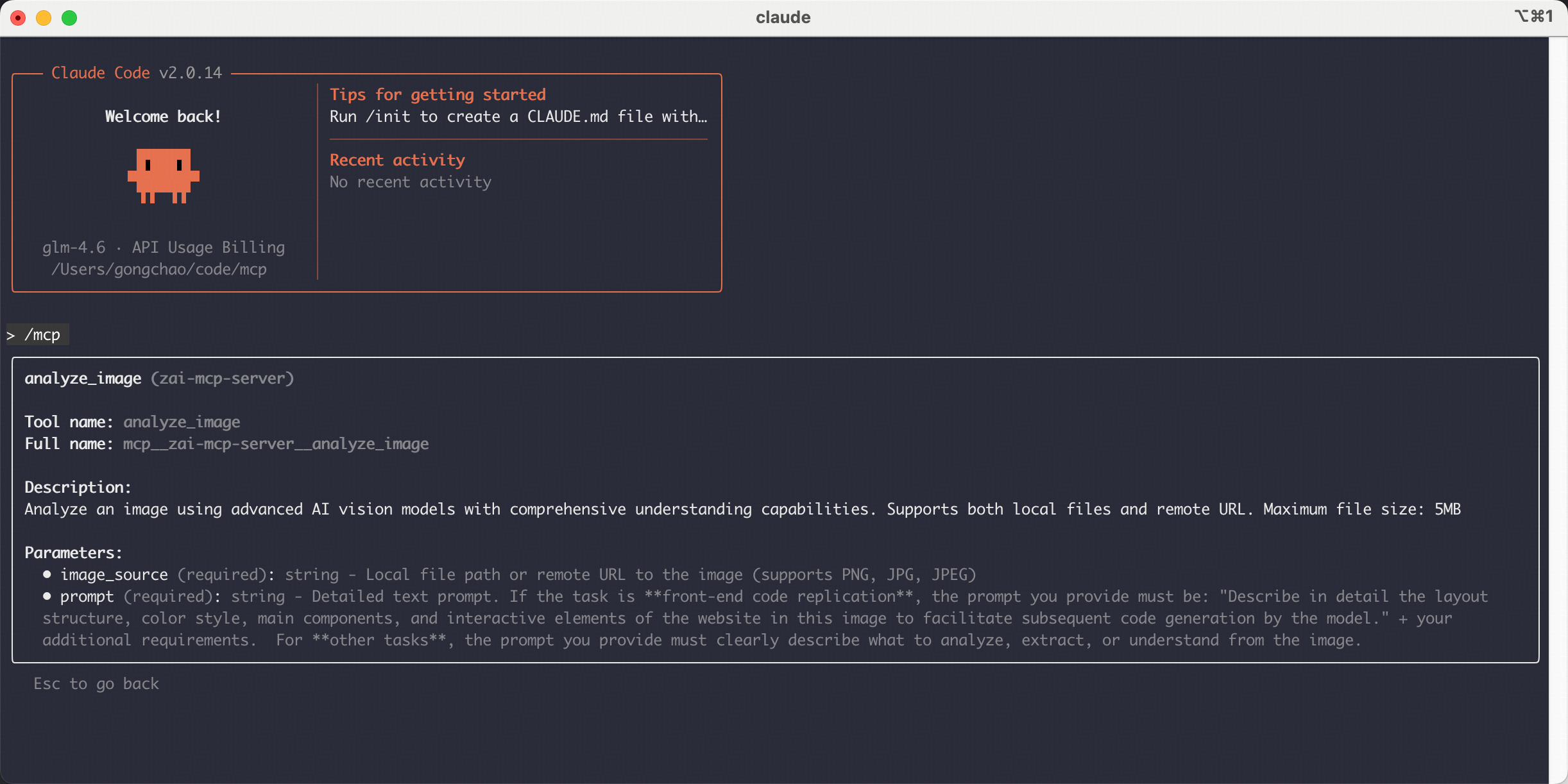
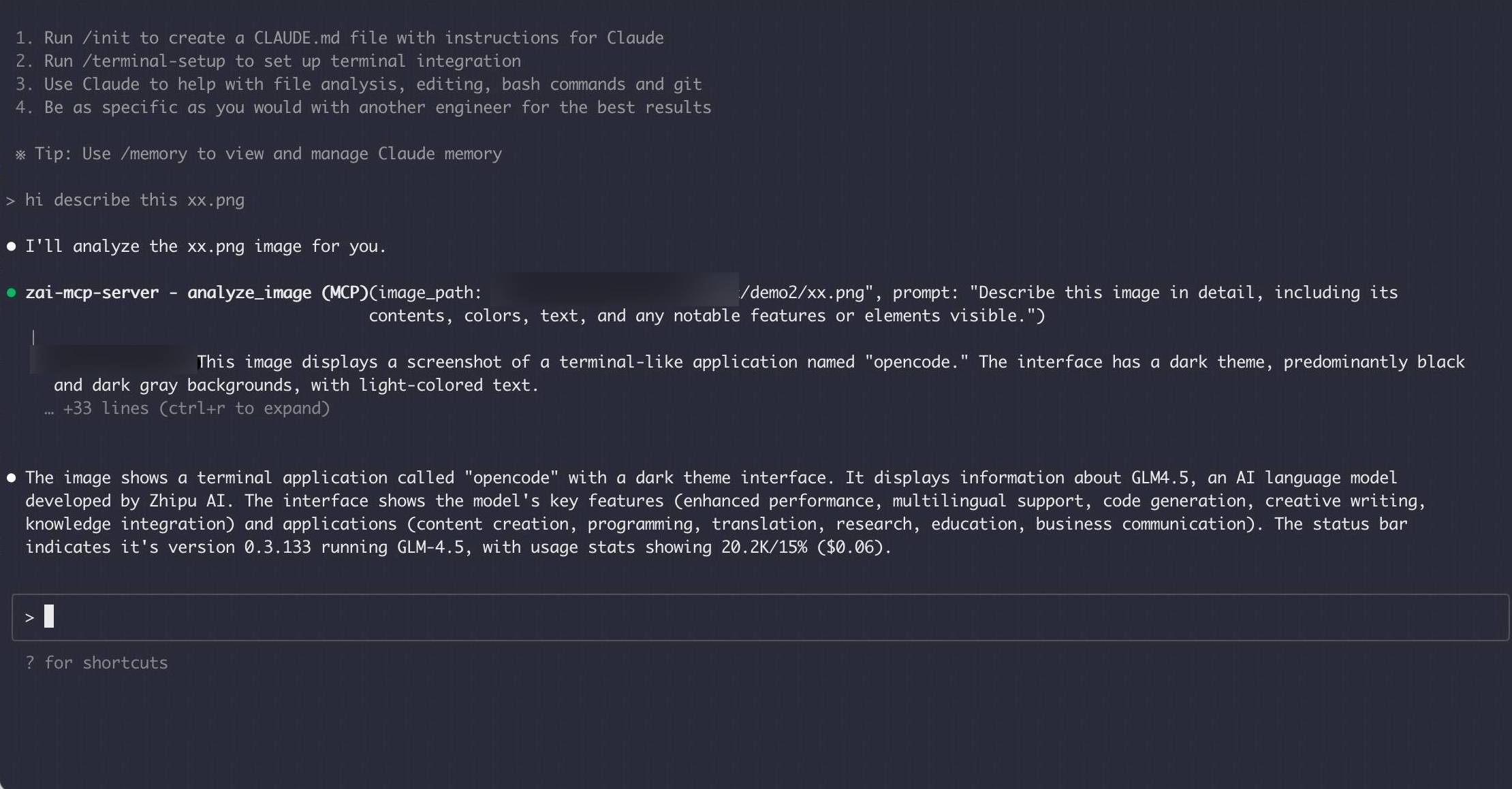
Through the previous step of installing the Vision MCP server to the client, you can directly use MCP in your Coding client. \
For example, in Claude Code, inputting `hi describe this xx.png` in the conversation, the MCP Server will process the image and return the description result. (The prerequisite is that you have the image in your current directory)
## Troubleshooting
Run the following command in your local terminal to verify if it can be installed locally, to troubleshoot environment, permission, and other issues:
```bash Linux/macOS theme={null}
Z_AI_API_KEY=your_api_key npx -y @z_ai/mcp-server
```
```cmd Windows Cmd theme={null}
set Z_AI_API_KEY=your_api_key && npx -y @z_ai/mcp-server
```
```powershell Windows PowerShell theme={null}
$env:Z_AI_API_KEY="your_api_key"; npx -y @z_ai/mcp-server
```
* If installed successfully, it indicates that the environment is correct, and the issue may be with the client configuration. Please check the client's MCP configuration.
* If installation fails, please troubleshoot based on the error message. It is recommended to paste the error message to a large model for analysis and resolution.
Other common issues:
**Issue:** Mcp server connection closed
**Solutions:**
1. Check whether Node.js 22 or a newer version is installed locally.
2. Run `node -v` and `npx -v` to verify that the execution environment is available.
3. Check the environment variable `Z_AI_API_KEY` is configured correctly.
**Issue:** Receiving invalid API Key error
**Solutions:**
1. Confirm the API Key is correctly copied
2. Check if the API Key is activated
3. Confirm the selected platform (`Z_AI_MODE`) matches the API Key
4. Check if the API Key has sufficient balance
**Issue:** MCP server connection timeout
**Solutions:**
1. Check network connection
2. Confirm firewall settings
3. Increase timeout settings
## Related Resources
* [Model Context Protocol (MCP) Official Documentation](https://modelcontextprotocol.io/)
* [Claude Desktop MCP Configuration Guide](https://docs.anthropic.com/en/docs/claude-code/mcp)
* [MCP Usage Limits](/devpack/overview#mcp-usage-limits)
* [Vision Model Introduction](/guides/vlm/glm-4.6v)