> ## Documentation Index
> Fetch the complete documentation index at: https://docs.z.ai/llms.txt
> Use this file to discover all available pages before exploring further.
# OpenClaw
> Complete guide to integrating Z.AI Coding Plan with OpenClaw AI assistant
OpenClaw is a personal AI assistant that runs on your own devices and connects to various messaging platforms. It can be configured to use Z.AI's GLM models through the Z.AI Coding Plan.
The GLM Coding Plan supports OpenClaw, but uses a secondary scheduling and best-effort delivery strategy. Coding Agent tasks have preemption priority, and under high load, OpenClaw tasks will automatically trigger fair-use policies such as dynamic queuing and rate limiting.
## Step 1: Installing and Configuring OpenClaw
* Access [Z.AI Open Platform](https://z.ai/model-api), Register or Login.
* Create an API Key in the [API Keys](https://z.ai/manage-apikey/apikey-list) management page.
* Make sure you have subscribed to the [GLM Coding Plan](https://z.ai/model-api/glm-coding-plan).
For detailed installation guide, please refer to the [official documentation](https://docs.openclaw.ai/install)
Prerequisites:
* [Node.js 22 or newer](https://nodejs.org/en/download/)
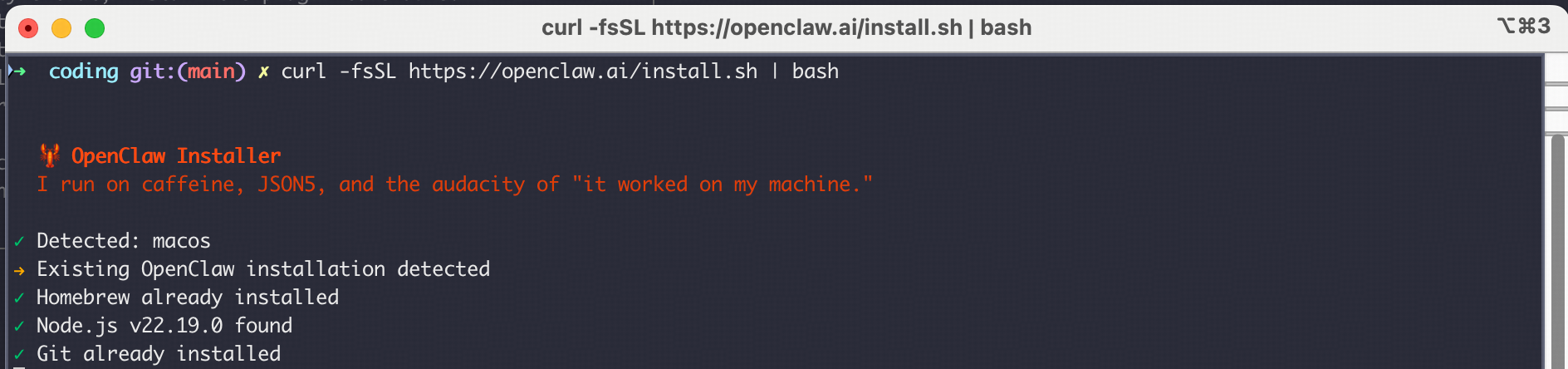
The easiest way to install OpenClaw is using the official installer script:
**macOS/Linux:**
```bash theme={null}
curl -fsSL https://openclaw.ai/install.sh | bash
```
**Windows (PowerShell):**
```powershell theme={null}
iwr -useb https://openclaw.ai/install.ps1 | iex
```
Prerequisites:
* [Node.js 22 or newer](https://nodejs.org/en/download/)
Install via npm:
```bash theme={null}
npm install -g openclaw@latest
```
Or via pnpm (recommended):
```bash theme={null}
pnpm add -g openclaw@latest
pnpm approve-builds -g # approve openclaw, node-llama-cpp, sharp, etc.
```
After running the installation commands above, the configuration process will start automatically. If it doesn't start, you can run the following command to begin configuration:
```
openclaw onboard --install-daemon
```
If you have already initialized before, you can also run `openclaw config` and select `model` configuration.
Start to Config:
* `I understand this is powerful and inherently risky. Continue?` | Choose ● `Yes`
* `Onboarding mode` | Choose ● `Quick Start`
* `Model/auth provider` | Choose ● `Z.AI`
After selecting Z.AI as the Model/auth provider, and then choose the `Coding-Plan-Global` \
Then you will be prompted to enter your API Key. Paste your Z.AI API Key and press Enter. \
Note: The models currently supported in the coding plan are `GLM-5.2, GLM-5-Turbo, GLM-4.7`. Please do not select other models to avoid unexpected charges.
Continue with the remaining OpenClaw feature configuration.
* `Select channel` | Choose and configure what you need.
* `Configure skills` | Choose and install what you need.
* Finish setup
After setup, the cli will ask you `How do you want to hatch your bot?`
* Choose ● `Hatch in TUI (recommended)`
Now you can start chatting with your bot in Terminal UI.
OpenClaw provides more channels for you to interact with your bot, such as Web UI, Discord, Slack, etc.
You can set up these channels by referring to the official documentation: [Channels Setup](https://docs.openclaw.ai/channels/setup)
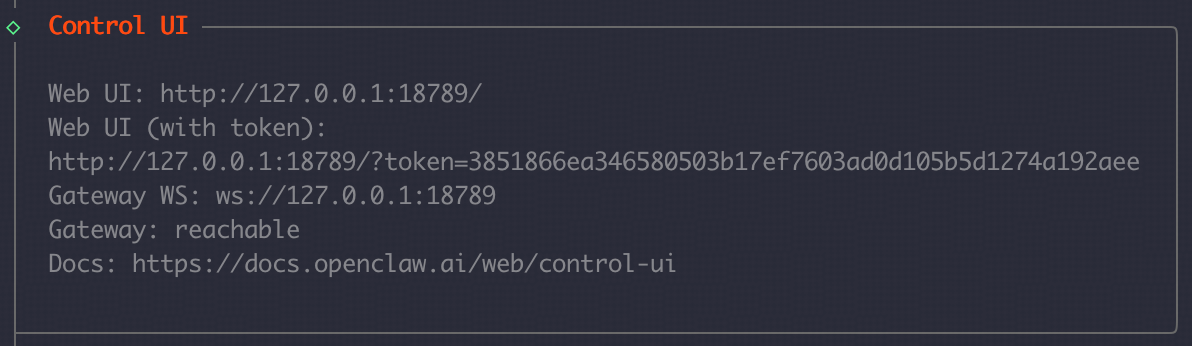
* For Web UI, you can access it by opening the `Web UI (with token)` link shown in the terminal.
Verify everything is working:
```
openclaw doctor # check for config issues
openclaw status # gateway status
openclaw dashboard # open the browser UI
```
For detailed configuration guide, please refer to the [official documentation](https://docs.openclaw.ai/start/getting-started)
OpenClaw may involve security risks if misconfigured or deployed without proper access controls. Please refer [official security](https://docs.openclaw.ai/gateway/security)
## Step 2: Switching to the Latest GLM Model
> For users who are currently using OpenClaw and cannot switch to the latest GLM model through the provider model selection method, after completing the previous zai provider setup, refer to the configuration below to switch to the latest GLM model
Add the GLM model you want to use (e.g., `glm-5.2`) to the `models.providers.zai.models` array in the `~/.openclaw/openclaw.json` file. Add it after the last model: Note to add a comma in the JSON format array
```json theme={null}
{
"id": "glm-5.2",
"name": "GLM-5.2",
"reasoning": true,
"input": [
"text"
],
"cost": {
"input": 0,
"output": 0,
"cacheRead": 0,
"cacheWrite": 0
},
"contextWindow": 1000000,
"maxTokens": 131072
}
```
Modify the default model, find `agents.defaults.model.primary`
```
"primary": "zai/glm-5",
```
Change to
```
"primary": "zai/glm-5.2",
```
Find agents.defaults.models (around lines 71-76), add:
```
"zai/glm-5.2": {}
```
Complete modified file snippet reference below:
1. `models.providers.zai.models` section:
```
"models": [
{
"id": "glm-5.2",
"name": "GLM-5.2",
"reasoning": true,
"input": ["text"],
"cost": {"input": 0, "output": 0, "cacheRead": 0, "cacheWrite": 0},
"contextWindow": 1000000,
"maxTokens": 131072
}
]
```
2. `agents.defaults.model` section:
```
"model": {
"primary": "zai/glm-5.2",
"fallbacks": ["zai/glm-4.7"]
}
```
3. agents.defaults.models section:
```
"models": {
"zai/glm-5.2": {"alias": "GLM"},
"zai/glm-4.7": {}
}
```
After completing the modifications, restart the gateway: `openclaw gateway restart`, and you can directly use the glm-5.2 model!
Execute `openclaw tui` in the terminal to enter the conversation and you can see that we are using the glm-5.2 model.
## Advanced Configuration
### Model Failover
Configure model failover to ensure reliability: `.openclaw/openclaw.json`
```json theme={null}
{
"agents": {
"defaults": {
"model": {
"primary": "zai/glm-5.2",
"fallbacks": ["zai/glm-4.7", "zai/glm-4.6"]
}
}
}
}
```
### Skills With ClawHub
> A skill is just a folder with a SKILL.md file. If you want to add new capabilities to your OpenClaw agent, [ClawHub](https://clawhub.ai/) is the easiest way to find and install skills.
#### Install the clawhub
```
npm i -g clawhub
```
#### Manage the Skill
Search for skills
```
clawhub search "postgres backups"
```
Download new skills
```
clawhub install my-skill-pack
```
Update installed skills
```
clawhub update --all
```
### Plugins
> A plugin is just a small code module that extends OpenClaw with extra features (commands, tools, and Gateway RPC).
See what’s already loaded:
```
openclaw plugins list
```
Install an official plugin (example: Voice Call):
```
openclaw plugins install @openclaw/voice-call
```
Restart the Gateway
```
openclaw gateway restart
```
## Common Issues
1. **API Key Authentication**
* Ensure your Z.AI API key is valid and has the GLM Coding Plan
* Check that the API key is properly set in the environment
2. **Model Availability**
* Verify that the GLM model is available in your region
* Check the model name format
3. **Connection Issues**
* Ensure the OpenClaw gateway is running
* Check network connectivity to Z.AI endpoints
## Resources
* **OpenClaw Documentation**: [docs.openclaw.ai](https://docs.openclaw.ai/)
* **OpenClaw GitHub**: [github.com/openclaw/openclaw](https://github.com/openclaw/openclaw)
* **Z.AI Developer Docs**: [docs.z.ai](https://docs.z.ai/)
* **Community Skills**: [awesome-openclaw-skills](https://github.com/VoltAgent/awesome-openclaw-skills)