> ## Documentation Index
> Fetch the complete documentation index at: https://docs.z.ai/llms.txt
> Use this file to discover all available pages before exploring further.
# Claude Code IDE Plugin
> How to use the Claude Code plugin in VS Code and JetBrains with GLM Coding Plan
Claude Code is an intelligent coding tool that can run in the terminal, and it can also be used by installing plugins in IDEs such as VS Code and JetBrains.
## Step 1: Install Claude Code & Configure GLM Coding Plan
The Claude Code IDE plugin depends on the Claude Code CLI. Please first complete the installation and GLM Coding Plan configuration by following the [**Claude Code Guide with GLM Coding Plan**](./claude).
## Step 2: Install and Use the IDE Plugin
The Claude Code VS Code plugin supports VS Code and VS Code-based IDEs (such as Cursor and Trae).
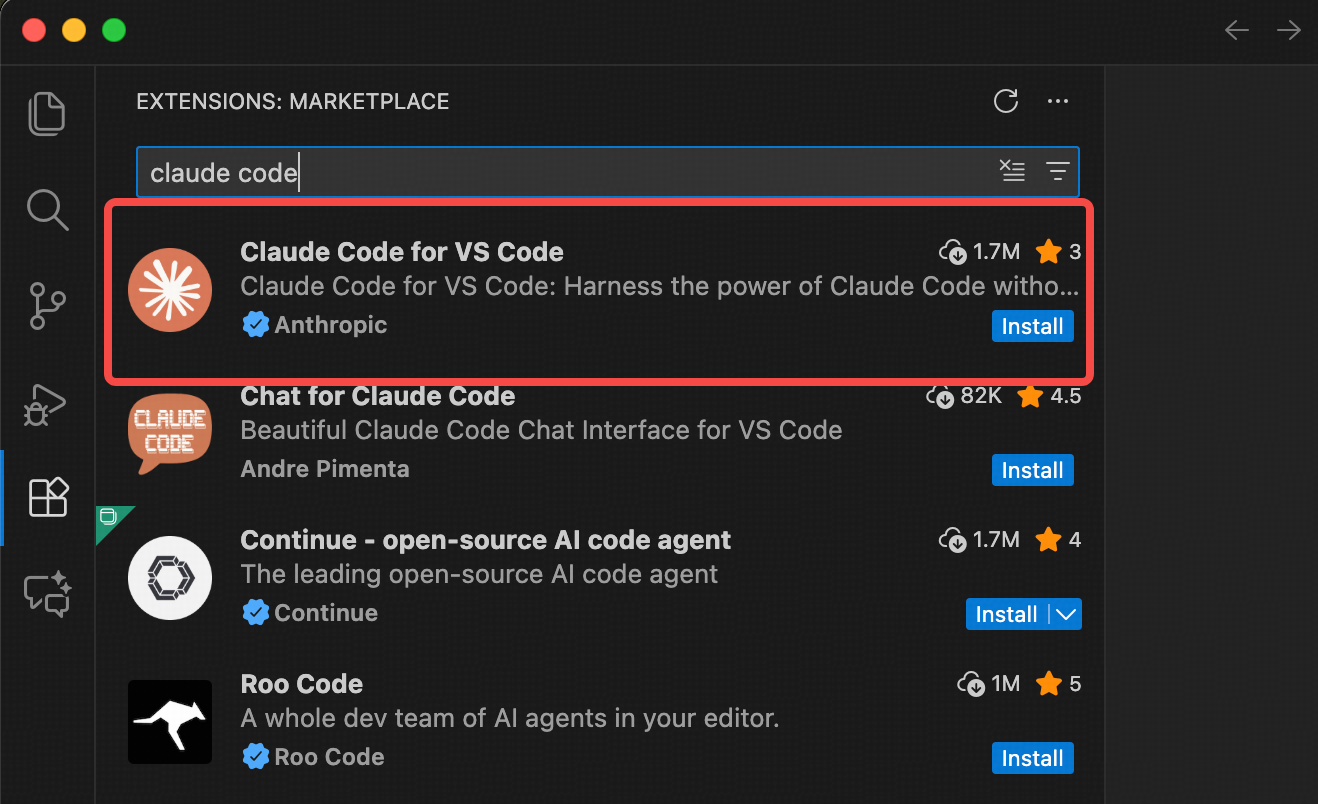
Open VS Code, go to the Extensions Marketplace, search for and install the “Claude Code” plugin.
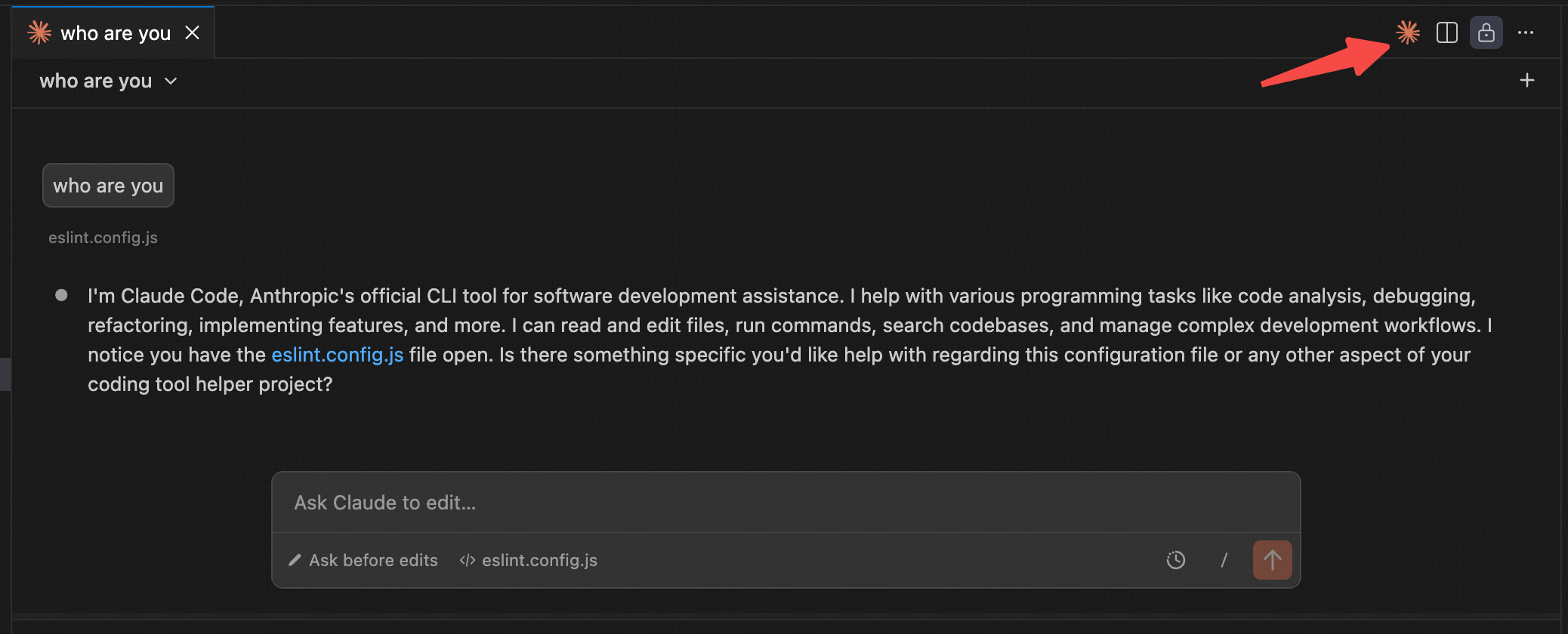
After installation, click the Claude Code icon at the top right as shown below to open the Claude Code panel. Wait a few seconds for initialization, then start using it.
The Claude Code JetBrains plugin supports JetBrains IDEs such as IntelliJ IDEA, PyCharm, and WebStorm.
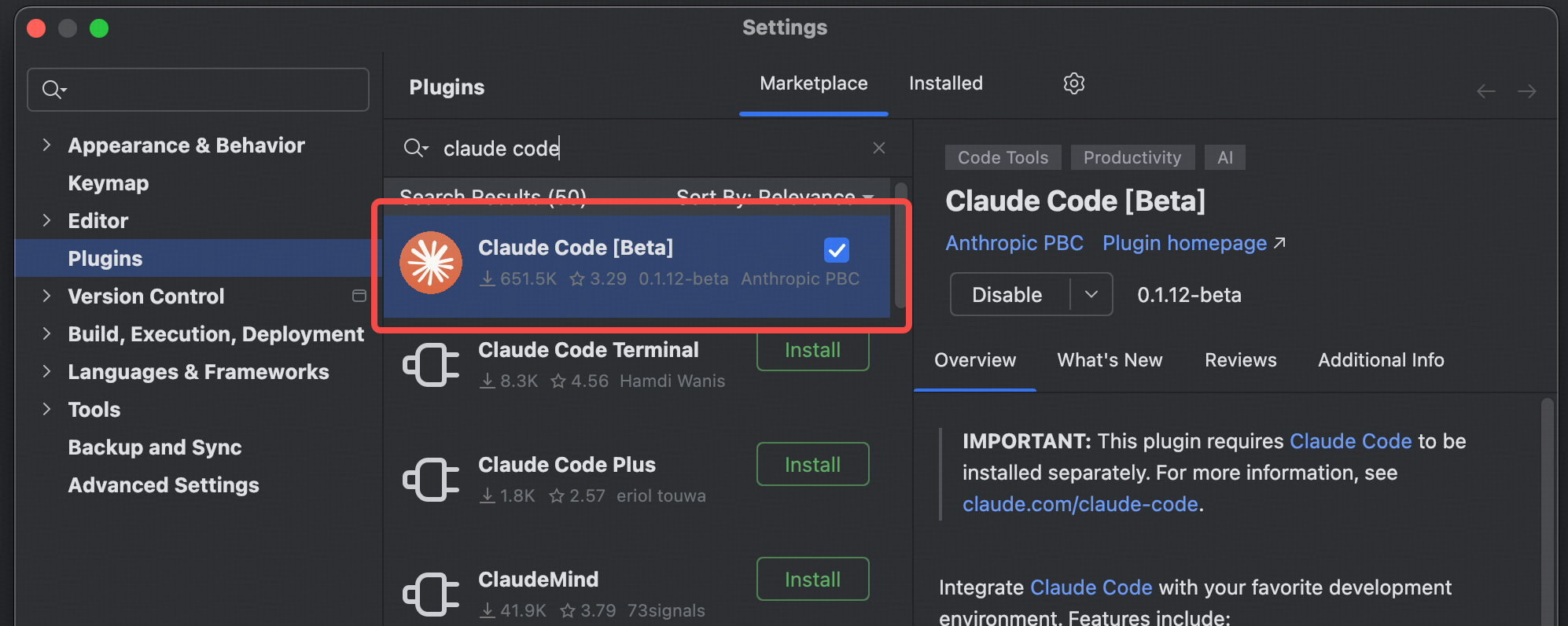
Open a JetBrains IDE (e.g., IntelliJ IDEA or PyCharm), go to the Plugins Marketplace, search for “Claude Code,” and install it.
After installation, restart the IDE to use Claude Code features.
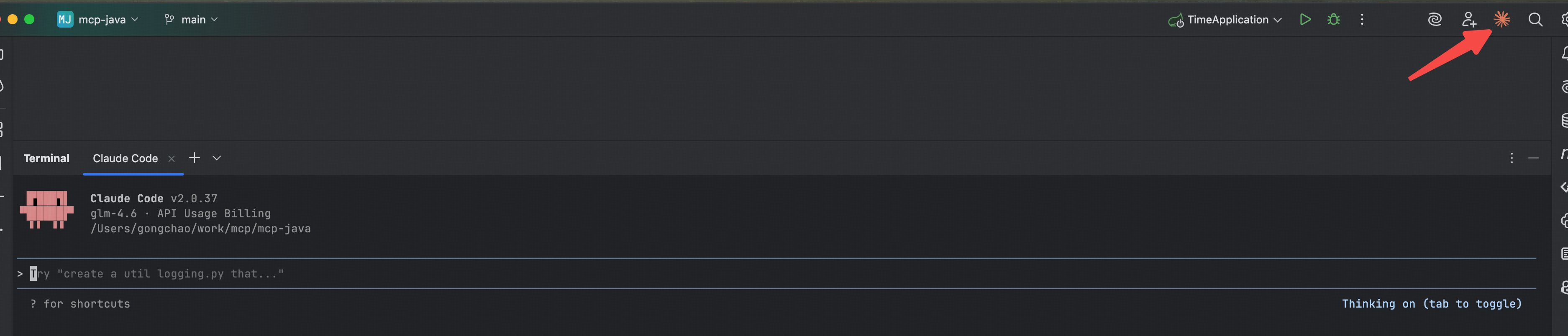
All set! You can now use Claude Code in your IDE for development.
***