> ## Documentation Index
> Fetch the complete documentation index at: https://docs.z.ai/llms.txt
> Use this file to discover all available pages before exploring further.
# Claude Code
> Methods for Using the GLM Coding Plan in Claude Code
Claude Code is an agentic coding tool that lives in your terminal, understands your codebase, and helps you code faster by executing routine tasks, explaining complex code, and handling git workflows -- all through natural language commands.
For users who have used the service before 2025-09-30: \
The default model for GLM Coding Plan has been upgraded to GLM-4.7 with seamless user experience.\
However, if you previously configured fixed model mappings for GLM-4.5 in `settings.json`, please refer to the "How to Switch the Model in Use" section in the FAQ below to make adjustments and ensure you're using the latest GLM-4.7 model.
After successfully configuring the subscription, the default server model mapping is applied, where you see the Claude model in the interface but the GLM model is actually used. \
You can manually adjust the model mapping (not recommended), see the "How to Switch the Model in Use" section in the FAQ for more details.
## Step 1: Installing the Claude Code
Prerequisites:
* [Node.js 18 or newer](https://nodejs.org/en/download/)
* For MacOS, please use [nvm](https://nodejs.org/en/download/) to install Nodejs, if you directly install the package, maybe encounter permission issues
* For Windows, please additionally install [Git for Windows](https://git-scm.com/download/win)
```
# Install Claude Code
npm install -g @anthropic-ai/claude-code
# Navigate to your project
cd your-awesome-project
# Complete
claude
```
If you are not familiar with npm but have Cursor, you can enter the command in Cursor, and Cursor will guide you through the installation of Claude Code.
```bash theme={null}
https://docs.anthropic.com/en/docs/claude-code/overview Help me install Claude Code
```
**Note**: If MacOS users encounter permission issues during installation, please use [nvm](https://nodejs.org/en/download/) to install Nodejs.
## Step 2: Config GLM Coding Plan
* Access [Z.AI Open Platform](https://z.ai/model-api), Register or Login.
* Create an API Key in the [API Keys](https://z.ai/manage-apikey/apikey-list) management page.
* Copy your API Key for use.
Set up environment variables **using one of the following methods** in the **macOS Linux** or **Windows**:
**Note**: Some commands show no output when setting environment variables — that’s normal as long as no errors appear.
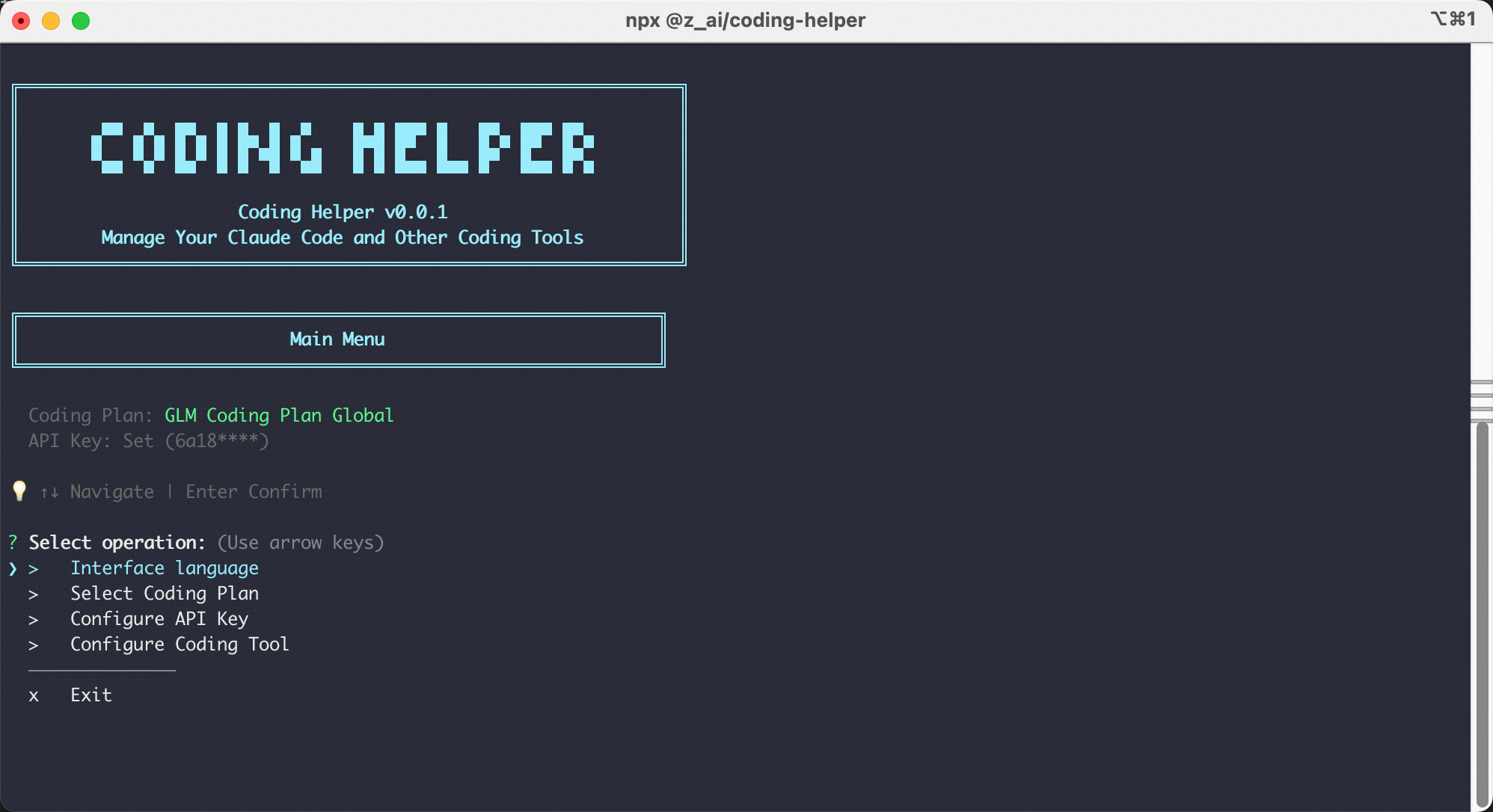
Coding Tool Helper is a coding-tool companion that quickly loads **GLM Coding Plan** into your favorite **Coding Tools**. Install and run it, then follow the on-screen guidance to automatically install tools, configure plan, and manage MCP servers.
```bash theme={null}
# Run Coding Tool Helper directly in the terminal
npx @z_ai/coding-helper
```
For more details, please refer to the [Coding Tool Helper](/devpack/extension/coding-tool-helper) documentation.
Just run the following command in your terminal \
Attention only macOS Linux environment is supported, this method does not support Windows
```bash theme={null}
curl -O "https://cdn.bigmodel.cn/install/claude_code_zai_env.sh" && bash ./claude_code_zai_env.sh
```
The script will automatically modify `~/.claude/settings.json` to configure the following environment variables(You don't need to edit manually):
```json theme={null}
{
"env": {
"ANTHROPIC_AUTH_TOKEN": "your_zai_api_key",
"ANTHROPIC_BASE_URL": "https://api.z.ai/api/anthropic",
"API_TIMEOUT_MS": "3000000"
}
}
```
If you have previously configured environment variables for Claude Code, you can manually configure them as follows. A new window is required for the changes to take effect.
```bash MacOS & Linux theme={null}
# Edit the Claude Code configuration file `~/.claude/settings.json`
# Add or modify the env fields ANTHROPIC_BASE_URL, ANTHROPIC_AUTH_TOKEN
# Note to replace `your_zai_api_key` with the API Key you obtained in the previous step
{
"env": {
"ANTHROPIC_AUTH_TOKEN": "your_zai_api_key",
"ANTHROPIC_BASE_URL": "https://api.z.ai/api/anthropic",
"API_TIMEOUT_MS": "3000000"
}
}
```
```cmd Windows Cmd theme={null}
# Run the following commands in Cmd
# Note to replace `your_zai_api_key` with the API Key you obtained in the previous step
setx ANTHROPIC_AUTH_TOKEN your_zai_api_key
setx ANTHROPIC_BASE_URL https://api.z.ai/api/anthropic
```
```powershell Windows PowerShell theme={null}
# Run the following commands in PowerShell
# Note to replace `your_zai_api_key` with the API Key you obtained in the previous step
[System.Environment]::SetEnvironmentVariable('ANTHROPIC_AUTH_TOKEN', 'your_zai_api_key', 'User')
[System.Environment]::SetEnvironmentVariable('ANTHROPIC_BASE_URL', 'https://api.z.ai/api/anthropic', 'User')
```
## Step 3: Start with Claude Code
Once the configuration is complete, you can start using **Claude Code** in your terminal or cmd:
```
cd your-project-directory
claude
```
> If prompted with "Do you want to use this API key," select "Yes."
After launching, grant Claude Code permission to access files in your folder as shown below:
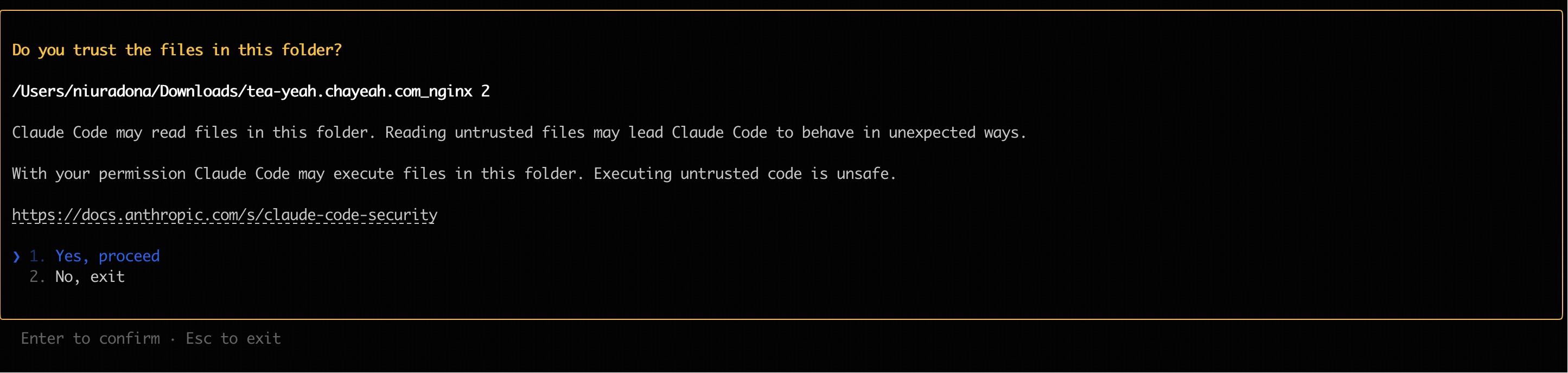
You can use Claude Code for development Now!
***
## FAQ
### How to Switch the Model in Use
Mapping between Claude Code internal model environment variables and GLM models, with the default configuration as follows:
* `ANTHROPIC_DEFAULT_OPUS_MODEL`: `GLM-4.7`
* `ANTHROPIC_DEFAULT_SONNET_MODEL`: `GLM-4.7`
* `ANTHROPIC_DEFAULT_HAIKU_MODEL`: `GLM-4.5-Air`
If adjustments are needed, you can directly modify the configuration file (for example, \~/.claude/settings.json in Claude Code) to switch to other models.
It is generally not recommended to manually adjust the model mapping, as hardcoding the model mapping makes it inconvenient to automatically update to the latest model when the GLM Coding Plan models are updated.
If you want to use the latest default mappings (for existing users who have configured old model mappings), simply delete the model mapping configuration in `settings.json`, and Claude Code will automatically use the latest default models.
1. Configure `~/.claude/settings.json` with the following content:
```text theme={null}
{
"env": {
"ANTHROPIC_DEFAULT_HAIKU_MODEL": "glm-4.5-air",
"ANTHROPIC_DEFAULT_SONNET_MODEL": "glm-4.7",
"ANTHROPIC_DEFAULT_OPUS_MODEL": "glm-4.7"
}
}
```
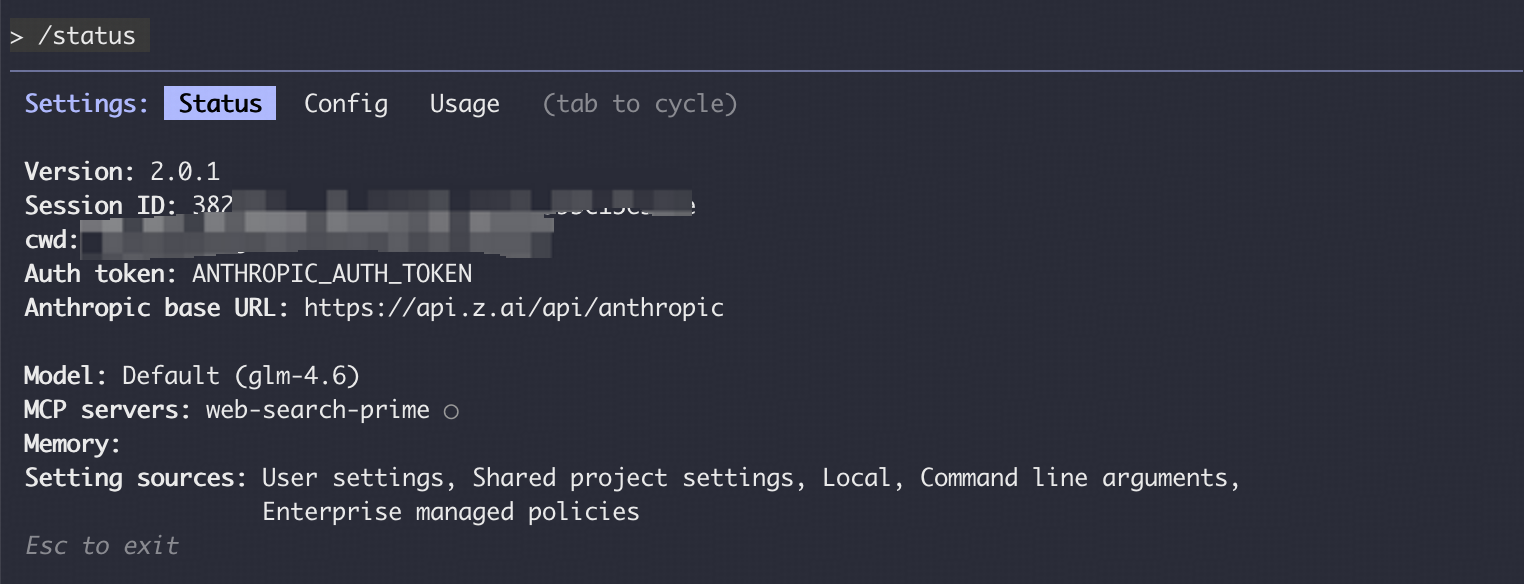
2. Open a new terminal window and run `claude` to start Claude Code, enter `/status` to check the current model status.
### Vision Search Reader MCP
Refer to the [Vision MCP Server](/devpack/mcp/vision-mcp-server) , [Search MCP Server](/devpack/mcp/search-mcp-server) and [Web Reader MCP Server](/devpack/mcp/reader-mcp-server) documentation; once configured, you can use them in Claude Code.
### Manual Configuration Not Work
If you manually modified the `~/.claude/settings.json` configuration file but found the changes did not take effect, refer to the following troubleshooting steps.
* Close all Claude Code windows, open a new command-line window, and run `claude` again to start.
* If the issue persists, try deleting the `~/.claude/settings.json` file and then reconfigure the environment variables; Claude Code will automatically generate a new configuration file.
* Confirm that the JSON format of the configuration file is correct, check the variable names, and ensure there are no missing or extra commas; you can use an online JSON validator tool to check.
### Recommended Claude Code Version
We recommend using the latest version of Claude Code. You can check the current version and upgrade with the following commands:
> We have verified compatibility with Claude Code 2.0.14 and other versions.
```bash theme={null}
# Check the current version
claude --version
2.0.14 (Claude Code)
# Upgrade to the latest
claude update
```