> ## Documentation Index
> Fetch the complete documentation index at: https://docs.z.ai/llms.txt
> Use this file to discover all available pages before exploring further.
# Cline
> Methods for Using the GLM Coding Plan in Cline Plugin
Cline is a powerful VS Code plugin that lets you use AI models directly in your editor for code generation, file operations, and more. It not only accelerates your workflow but also provides contextual understanding and intelligent suggestions for complex tasks.
Cline is even more capable with the [GLM Coding Plan](https://z.ai/subscribe?utm_source=zai\&utm_medium=link\&utm_term=devpack-integration\&utm_campaign=Platform_Ops&_channel_track_key=w3mNdY8g), giving you more usage at a lower cost, so you can handle code generation, file management, and multimodal interactions with ease.
Using the GLM Coding Plan, you need to configure the dedicated Coding API [https://api.z.ai/api/coding/paas/v4](https://api.z.ai/api/coding/paas/v4) instead of the General API [https://api.z.ai/api/paas/v4](https://api.z.ai/api/paas/v4)
For users who have used the service before 2025-12-22: \
The default model has been upgraded to GLM-4.7. Please update your config accordingly.
## Step 1: Installing the Cline Plugin
### 1. Open the Extensions Marketplace
a. Open VS Code
b. Click the Extensions Marketplace icon on the left
c. Enter `cline` in the search box
d. Locate the `Cline` extension
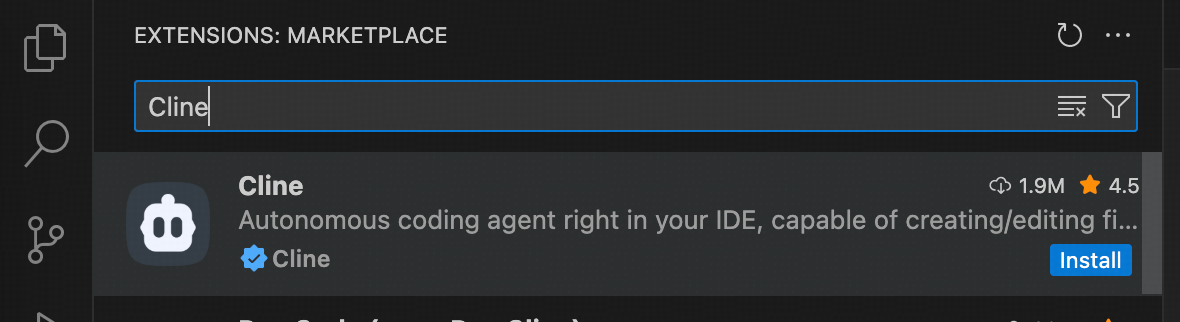
### 2. Install the Plugin
a. Click the `Install` button to install
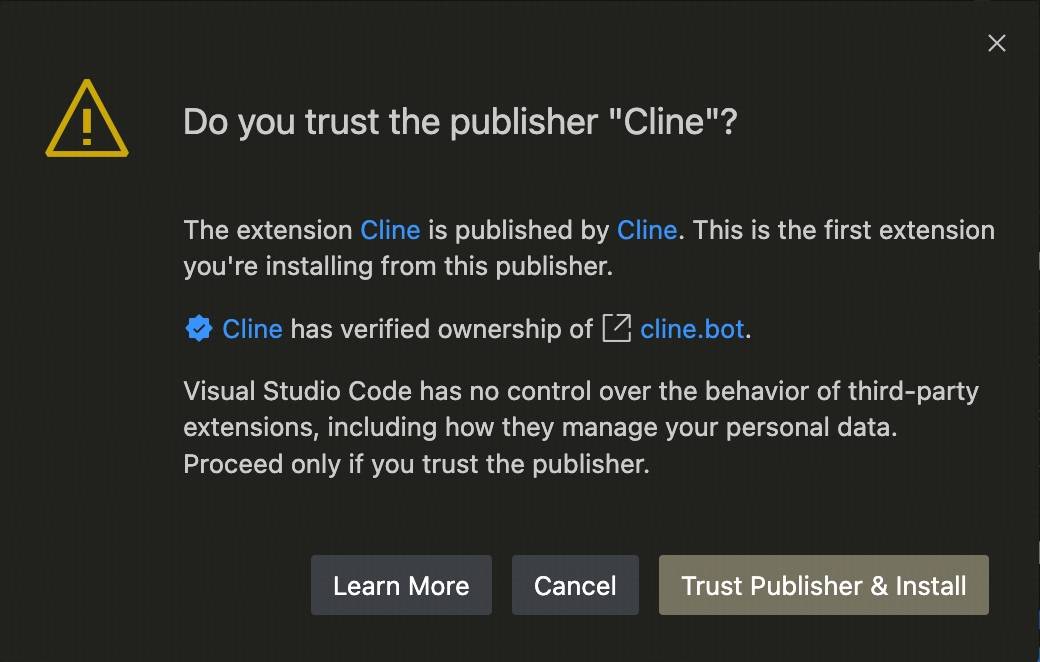
b. After installation, choose to trust the developer
## Step 2: Configuring API Settings
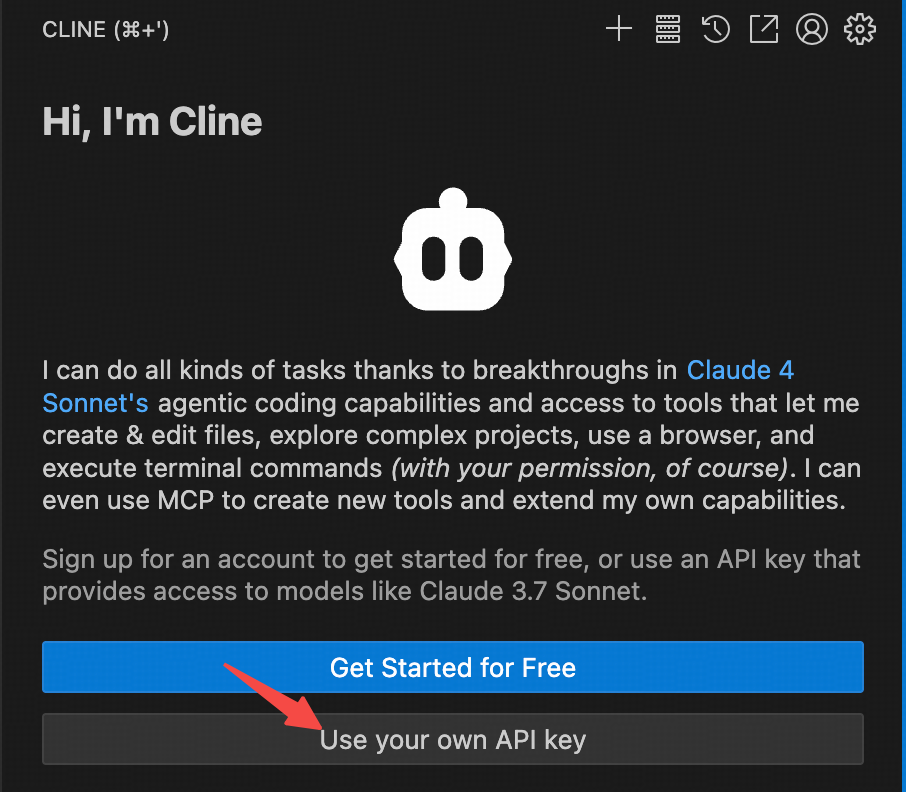
### 1. Select API Key Method
Choose `Use your own API Key`
### 2. Enter Configuration Information
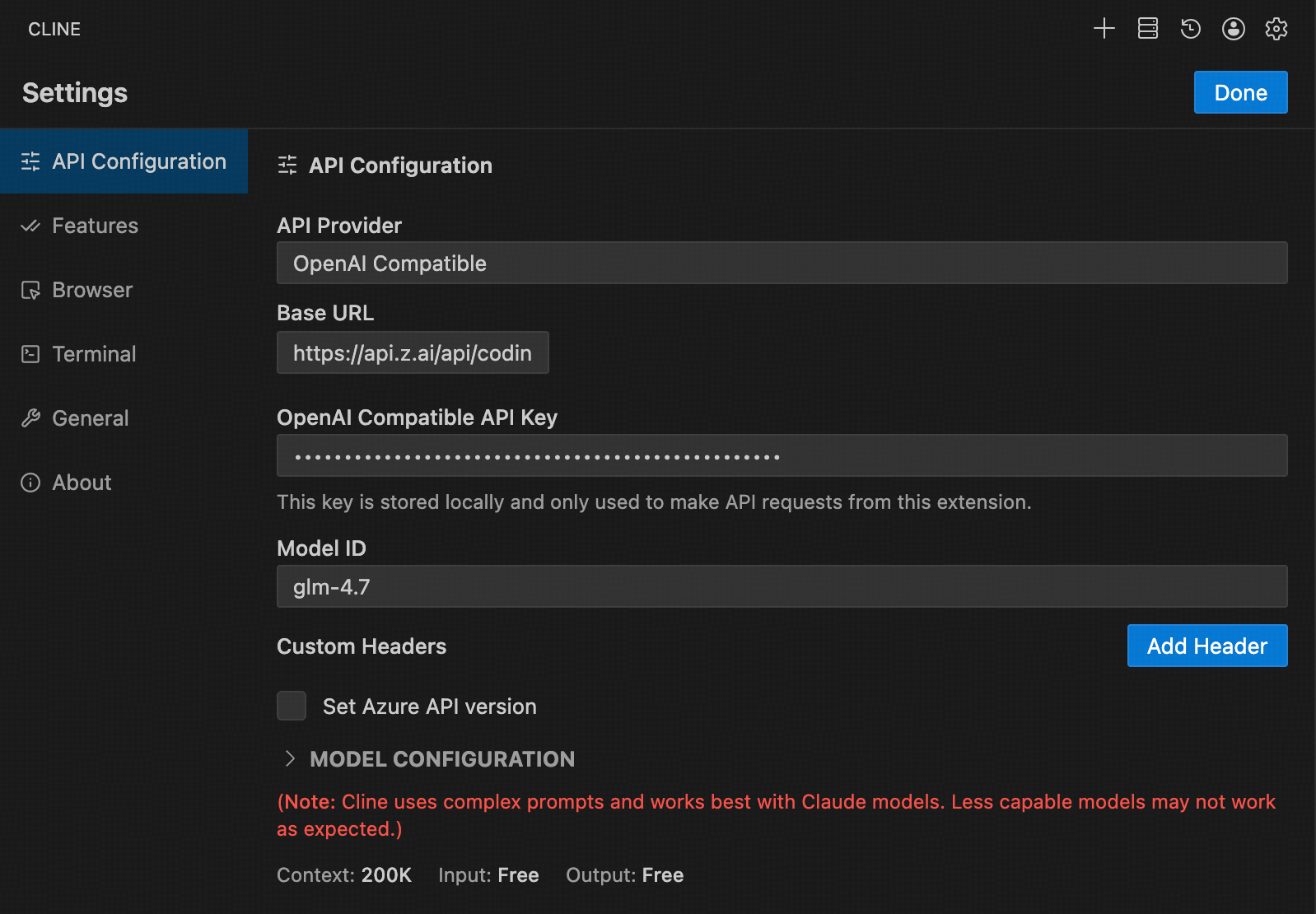
Fill in the relevant information according to the following settings:
* **API Provider**: Select `OpenAI Compatible`
* **Base URL**: Enter `https://api.z.ai/api/coding/paas/v4`
* **API Key**: Enter your Z.AI API Key
* **Model**: Select "Use custom" and enter the model name (e.g., `glm-4.7`)
* **Other Configurations**:
* Unchecking **Support Images**
* Adjust **Context Window Size** to `200000`
* Adjust `temperature` and other params according to your task requirements.
## Step 3: Getting Started
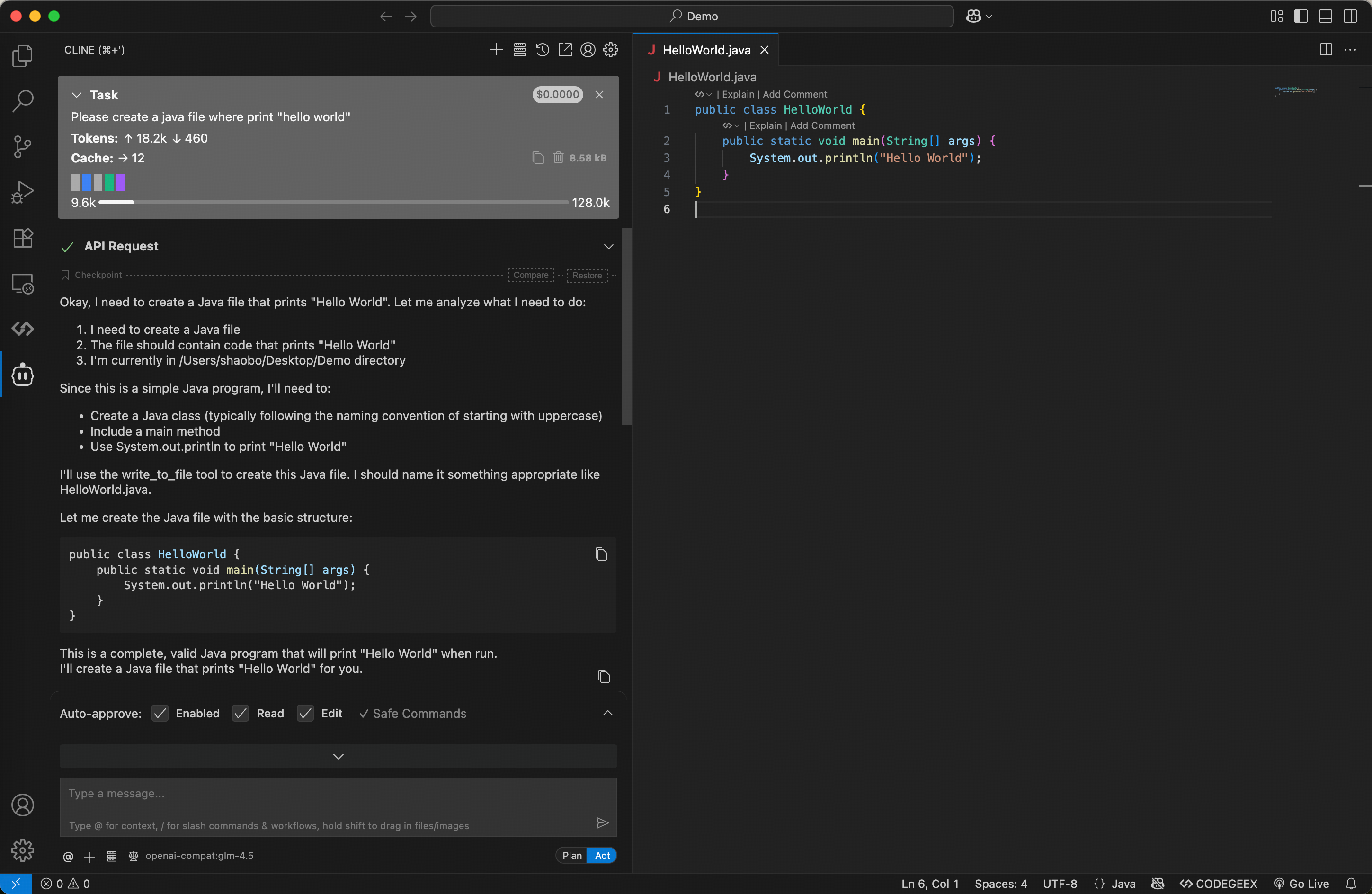
Once configured, you can enter your requirements in the input box to let the model assist you with various tasks, such as:
* Creating and editing files
* Generating code
* Refactoring code
* Explaining code logic
* Debugging issues
## Step 4: Vision Search Reader MCP
Refer to the [Vision MCP Server](/devpack/mcp/vision-mcp-server) , [Search MCP Server](/devpack/mcp/search-mcp-server) and [Web Reader MCP Server](/devpack/mcp/reader-mcp-server) documentation; once configured, you can use them in Cline.