> ## Documentation Index
> Fetch the complete documentation index at: https://docs.z.ai/llms.txt
> Use this file to discover all available pages before exploring further.
# Crush
> Methods for Using the GLM Coding Plan in Crush
Crush is a powerful AI coding agent for the terminal (CLI + TUI). It supports multiple models to handle code generation, debugging, file operations, and more — all inside your command line.
Crush is supercharged with the [GLM Coding Plan](https://z.ai/subscribe?utm_source=zai\&utm_medium=link\&utm_term=devpack-integration\&utm_campaign=Platform_Ops&_channel_track_key=w3mNdY8g), making your terminal workflow smarter and more efficient.
Using the GLM Coding Plan, you need to configure the dedicated Coding API [https://api.z.ai/api/coding/paas/v4](https://api.z.ai/api/coding/paas/v4) instead of the General API [https://api.z.ai/api/paas/v4](https://api.z.ai/api/paas/v4)
For users who have used the service before 2025-12-22: \
The default model has been upgraded to GLM-4.7. Please update your config accordingly.
## Step 1: Installing Crush
Select the appropriate installation method based on your system:
```
brew install charmbracelet/tap/crush
```
```
npm install -g @charmland/crush
```
```
yay -S crush-bin
```
```
nix run github:numtide/nix-ai-tools#crush
```
## Step 2: Configuring the GLM Model
### 1. Obtain Your Z.AI API Key
Visit Z.AI to get your [API Key](https://z.ai/manage-apikey/apikey-list).
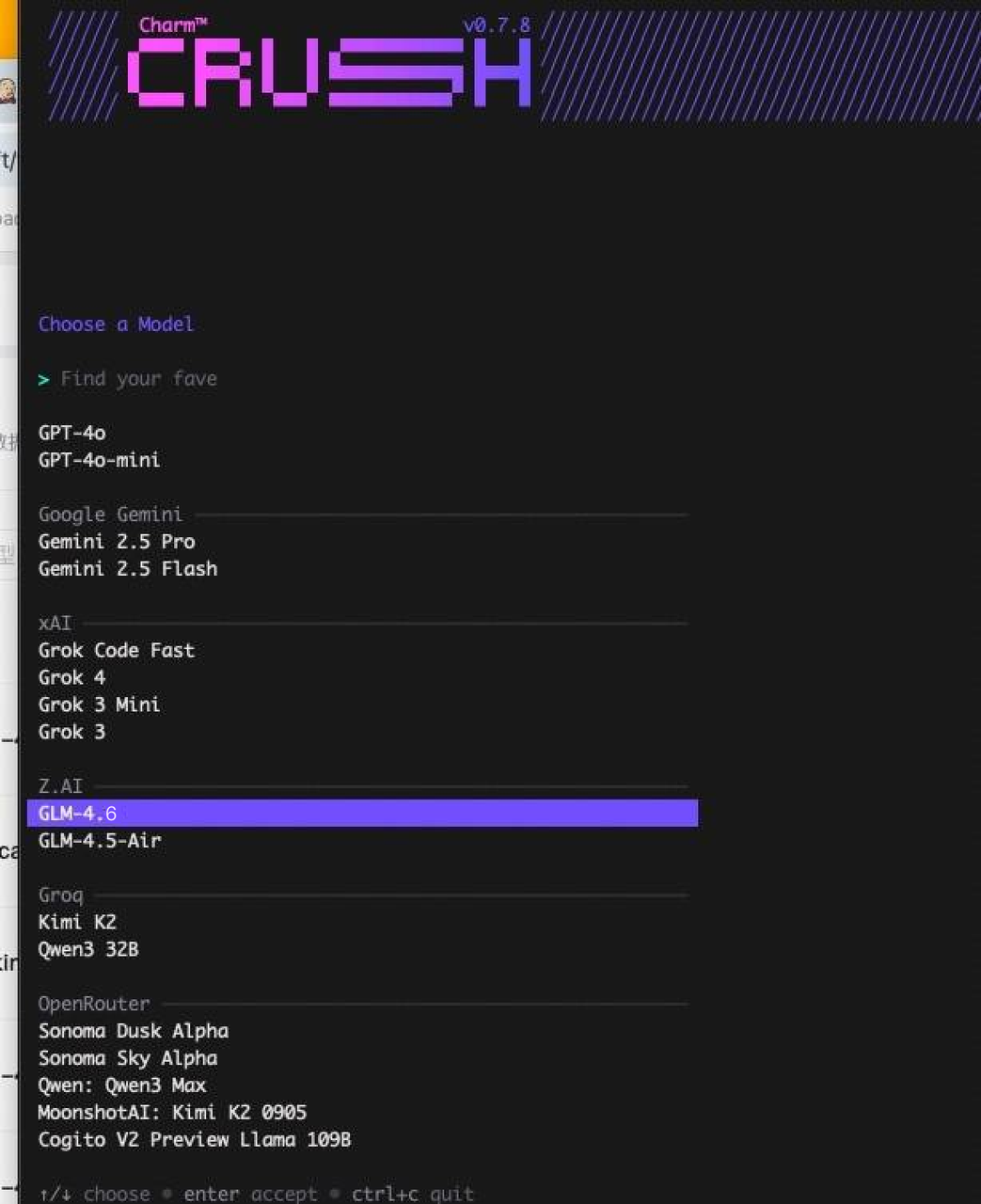
### 2. Launch Crush and Select Model
Run the crush command to start the application:
```
crush
```
In the model selection interface, choose one of the following models:
* glm-4.7 : Highest performance, strong coding version
* glm-4.7 : Standard version, suitable for complex tasks
* glm-4.5-air : Lightweight version, faster response
### 3. Enter your Z.AI API key
Enter the API Key obtained from Z.AI at the prompt.
## Step 3: Modify Crush Configuration
### 1. Locate the Configuration File
Depending on your OS, the configuration file can be found at:
```bash MacOS/Linux theme={null}
~/.config/crush/crush.json
```
```powershell Windows theme={null}
%USERPROFILE%\.config\crush\crush.json
```
### 2. Switch to the GLM Coding Plan Endpoint
Open the crush.json file and configure it as follows, making sure to replace with your API KEY:
```
{
"providers": {
"zai": {
"id": "zai",
"name": "ZAI Provider",
"base_url": "https://api.z.ai/api/coding/paas/v4",
"api_key": "your_api_key"
}
}
}
```
## Step 4: Complete Configuration and Pick model
Press `ctrl+p`, choose "Switch Model"
After configuration, you can now:
* Generate and optimize code using GLM-4.7
* Conduct technical Q\&A and debugging
* Execute complex programming tasks
* Experience the powerful capabilities of Z.AI
## Step 5: Vision Search Reader MCP
Refer to the [Vision MCP Server](/devpack/mcp/vision-mcp-server) , [Search MCP Server](/devpack/mcp/search-mcp-server) and [Web Reader MCP Server](/devpack/mcp/reader-mcp-server) documentation; once configured, you can use them in Crush.