> ## Documentation Index
> Fetch the complete documentation index at: https://docs.z.ai/llms.txt
> Use this file to discover all available pages before exploring further.
# Open Code
> Complete guide to integrating Z.AI GLM models with OpenCode CLI
OpenCode is a powerful AI coding agent that can be configured to use Z.AI's GLM models.
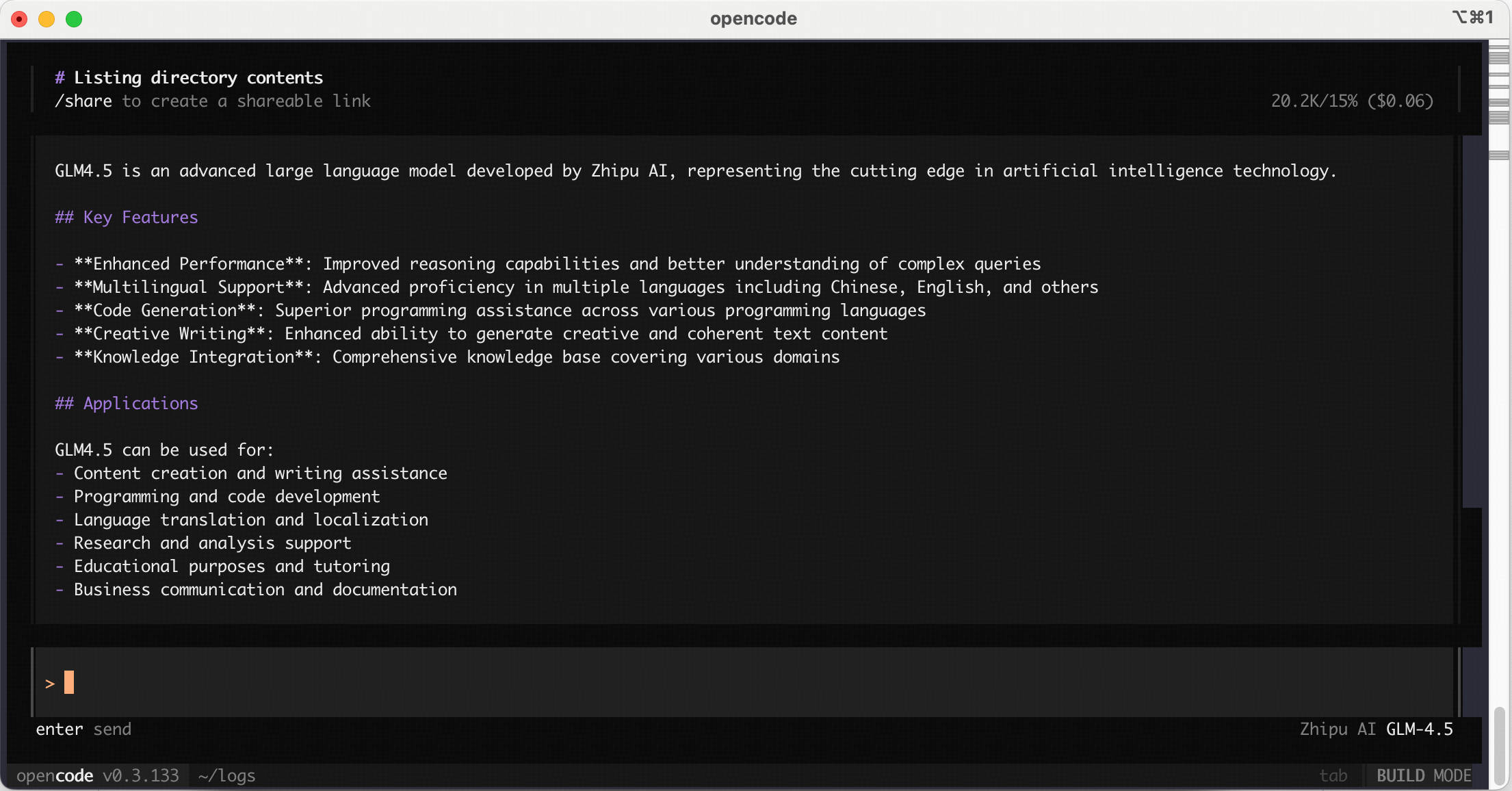 For users who have used the service before 2025-12-22: \
The default model has been upgraded to GLM-4.7. Please update your config accordingly.
## Step 1: Installing OpenCode
The easiest way to install OpenCode is through the install script.
```bash theme={null}
curl -fsSL https://opencode.ai/install | bash
```
You can also install it with npm:
```bash theme={null}
npm install -g opencode-ai
```
## Step 2: Getting Started
1. Head over to the [Z.AI API Console](https://z.ai/manage-apikey/apikey-list) to get your API key.
2. Run `opencode auth login` and select **Z.AI**.
```bash theme={null}
$ opencode auth login
┌ Add credential
│
◆ Select provider
│ ● Z.AI
│ ...
└
```
If you are subscribed to the **GLM Coding Plan**, select **Z.AI Coding Plan**.
```bash theme={null}
$ opencode auth login
┌ Add credential
│
◆ Select provider
│ ● Z.AI Coding Plan
│ ...
└
```
3. Enter your Z.AI API key.
```bash theme={null}
$ opencode auth login
┌ Add credential
│
◇ Select provider
│ Z.AI Coding Plan
│
◇ Enter your API key
│ _
└
```
4. Run `opencode` to launch OpenCode.
```bash theme={null}
$ opencode
```
Use the `/models` command to select a model like *GLM-4.7*.
```
/models
```
5. Vision Search Reader MCP
Refer to the [Vision MCP Server](/devpack/mcp/vision-mcp-server) , [Search MCP Server](/devpack/mcp/search-mcp-server) and [Web Reader MCP Server](/devpack/mcp/reader-mcp-server) documentation; once configured, you can use them in OpenCode.
## Share
OpenCode’s share feature allows you to create public links to your OpenCode conversations, so you can collaborate with teammates or get help from others.
#### How it works
When you share a conversation, OpenCode:
1. Creates a unique public URL for your session
2. Syncs your conversation history to our servers
3. Makes the conversation accessible via the shareable link — `opencode.ai/s/`
#### Share
By default, conversations are not shared automatically. You can manually share them using the `/share` command:
```
/share
```
#### Un-share
To stop sharing a conversation and remove it from public access:
```
/unshare
```
This will remove the share link and delete the data related to the conversation.
Learn more about [sharing conversations](https://opencode.ai/docs/share/).
## IDE Extensions
OpenCode integrates with VS Code, Cursor, or any IDE that supports a terminal.
#### Installation
To install OpenCode on VS Code and popular forks like Cursor, Windsurf, VSCodium:
1. Open VS Code
2. Open the integrated terminal
3. Run `opencode` - the extension installs automatically
#### Usage
* **Quick Launch**: Use `Cmd+Esc` (Mac) or `Ctrl+Esc` (Windows/Linux) to open OpenCode in a split terminal view, or focus an existing terminal session if one is already running.
* **New Session**: Use `Cmd+Shift+Esc` (Mac) or `Ctrl+Shift+Esc` (Windows/Linux) to start a new OpenCode terminal session, even if one is already open. You can also click the OpenCode button in the UI.
* **Context Awareness**: Automatically share your current selection or tab with OpenCode.
* **File Reference Shortcuts**: Use `Cmd+Option+K` (Mac) or `Alt+Ctrl+K` (Linux/Windows) to insert file references. For example, `@File#L37-42`.
Learn more about [IDE integrations](https://opencode.ai/docs/ide/).
## GitHub Workflow
OpenCode integrates with your GitHub workflow. Mention `/opencode` or `/oc` in your comment, and OpenCode will execute tasks within your GitHub Actions runner.
#### Features
* **Triage issues**: Ask OpenCode to look into an issue and explain it to you.
* **Fix and implement**: Ask OpenCode to fix an issue or implement a feature. And it will work in a new branch and submits a PR with all the changes.
* **Secure**: OpenCode runs inside your GitHub's runners.
#### Installation
Run the following command in a project that is in a GitHub repo:
```bash theme={null}
opencode github install
```
This will walk you through installing the GitHub app, creating the workflow, and setting up secrets.
#### Examples
Here are some examples of how you can use OpenCode in GitHub.
* **Explain an issue**
Add this comment in a GitHub issue.
```
/opencode explain this issue
```
OpenCode will read the entire thread, including all comments, and reply with a clear explanation.
* **Fix an issue**
In a GitHub issue, say:
```
/opencode fix this
```
And OpenCode will create a new branch, implement the changes, and open a PR with the changes.
* **Review PRs and make changes**
Leave the following comment on a GitHub PR.
```
Delete the attachment from S3 when the note is removed /oc
```
OpenCode will implement the requested change and commit it to the same PR.
Learn more about [GitHub workflow](https://opencode.ai/docs/github/).
## Resources
* **Documentation**: [opencode.ai/docs](https://opencode.ai/docs)
* **GitHub Issues**: [github.com/sst/opencode/issues](https://github.com/sst/opencode/issues)
* **Discord**: [opencode.ai/discord](https://opencode.ai/discord)
For users who have used the service before 2025-12-22: \
The default model has been upgraded to GLM-4.7. Please update your config accordingly.
## Step 1: Installing OpenCode
The easiest way to install OpenCode is through the install script.
```bash theme={null}
curl -fsSL https://opencode.ai/install | bash
```
You can also install it with npm:
```bash theme={null}
npm install -g opencode-ai
```
## Step 2: Getting Started
1. Head over to the [Z.AI API Console](https://z.ai/manage-apikey/apikey-list) to get your API key.
2. Run `opencode auth login` and select **Z.AI**.
```bash theme={null}
$ opencode auth login
┌ Add credential
│
◆ Select provider
│ ● Z.AI
│ ...
└
```
If you are subscribed to the **GLM Coding Plan**, select **Z.AI Coding Plan**.
```bash theme={null}
$ opencode auth login
┌ Add credential
│
◆ Select provider
│ ● Z.AI Coding Plan
│ ...
└
```
3. Enter your Z.AI API key.
```bash theme={null}
$ opencode auth login
┌ Add credential
│
◇ Select provider
│ Z.AI Coding Plan
│
◇ Enter your API key
│ _
└
```
4. Run `opencode` to launch OpenCode.
```bash theme={null}
$ opencode
```
Use the `/models` command to select a model like *GLM-4.7*.
```
/models
```
5. Vision Search Reader MCP
Refer to the [Vision MCP Server](/devpack/mcp/vision-mcp-server) , [Search MCP Server](/devpack/mcp/search-mcp-server) and [Web Reader MCP Server](/devpack/mcp/reader-mcp-server) documentation; once configured, you can use them in OpenCode.
## Share
OpenCode’s share feature allows you to create public links to your OpenCode conversations, so you can collaborate with teammates or get help from others.
#### How it works
When you share a conversation, OpenCode:
1. Creates a unique public URL for your session
2. Syncs your conversation history to our servers
3. Makes the conversation accessible via the shareable link — `opencode.ai/s/`
#### Share
By default, conversations are not shared automatically. You can manually share them using the `/share` command:
```
/share
```
#### Un-share
To stop sharing a conversation and remove it from public access:
```
/unshare
```
This will remove the share link and delete the data related to the conversation.
Learn more about [sharing conversations](https://opencode.ai/docs/share/).
## IDE Extensions
OpenCode integrates with VS Code, Cursor, or any IDE that supports a terminal.
#### Installation
To install OpenCode on VS Code and popular forks like Cursor, Windsurf, VSCodium:
1. Open VS Code
2. Open the integrated terminal
3. Run `opencode` - the extension installs automatically
#### Usage
* **Quick Launch**: Use `Cmd+Esc` (Mac) or `Ctrl+Esc` (Windows/Linux) to open OpenCode in a split terminal view, or focus an existing terminal session if one is already running.
* **New Session**: Use `Cmd+Shift+Esc` (Mac) or `Ctrl+Shift+Esc` (Windows/Linux) to start a new OpenCode terminal session, even if one is already open. You can also click the OpenCode button in the UI.
* **Context Awareness**: Automatically share your current selection or tab with OpenCode.
* **File Reference Shortcuts**: Use `Cmd+Option+K` (Mac) or `Alt+Ctrl+K` (Linux/Windows) to insert file references. For example, `@File#L37-42`.
Learn more about [IDE integrations](https://opencode.ai/docs/ide/).
## GitHub Workflow
OpenCode integrates with your GitHub workflow. Mention `/opencode` or `/oc` in your comment, and OpenCode will execute tasks within your GitHub Actions runner.
#### Features
* **Triage issues**: Ask OpenCode to look into an issue and explain it to you.
* **Fix and implement**: Ask OpenCode to fix an issue or implement a feature. And it will work in a new branch and submits a PR with all the changes.
* **Secure**: OpenCode runs inside your GitHub's runners.
#### Installation
Run the following command in a project that is in a GitHub repo:
```bash theme={null}
opencode github install
```
This will walk you through installing the GitHub app, creating the workflow, and setting up secrets.
#### Examples
Here are some examples of how you can use OpenCode in GitHub.
* **Explain an issue**
Add this comment in a GitHub issue.
```
/opencode explain this issue
```
OpenCode will read the entire thread, including all comments, and reply with a clear explanation.
* **Fix an issue**
In a GitHub issue, say:
```
/opencode fix this
```
And OpenCode will create a new branch, implement the changes, and open a PR with the changes.
* **Review PRs and make changes**
Leave the following comment on a GitHub PR.
```
Delete the attachment from S3 when the note is removed /oc
```
OpenCode will implement the requested change and commit it to the same PR.
Learn more about [GitHub workflow](https://opencode.ai/docs/github/).
## Resources
* **Documentation**: [opencode.ai/docs](https://opencode.ai/docs)
* **GitHub Issues**: [github.com/sst/opencode/issues](https://github.com/sst/opencode/issues)
* **Discord**: [opencode.ai/discord](https://opencode.ai/discord)