> ## Documentation Index
> Fetch the complete documentation index at: https://docs.z.ai/llms.txt
> Use this file to discover all available pages before exploring further.
# Other Tools
> Methods for using the GLM Coding Plan in other tools
You can integrate GLM Coding Plan with coding tools covered by the plan that follow the OpenAI-compatible API protocol. Simply replace the API endpoint and provide the corresponding API key to seamlessly connect with GLM models.
Using the GLM Coding Plan, you need to configure the dedicated Coding API `https://api.z.ai/api/coding/paas/v4` instead of the General API `https://api.z.ai/api/paas/v4`
## Step 1: Supported Tools
Click on the tool documentation below that you wish to use, and follow the corresponding integration guide to set it up.
The Claude Code IDE plugin supports VSCode and JetBrains.
An AI-first code editor that supports custom model configurations.
An AI programming extension for VS Code that supports code generation and file operations.
An AI editor capable of independently completing various development tasks.
Enterprise-grade AI coding agent that runs in the terminal to handle end-to-end workflows.
A powerful VS Code extension for code generation and project management.
A smart VS Code extension for code writing and refactoring.
A terminal-based AI programming tool that supports both CLI and TUI interfaces.
AI Agent tool, supporting local execution and automated engineering tasks.
A desktop AI agent built on a multi-agent architecture, capable of automating browser, terminal, and MCP-powered workflows.
## Step 2: Install and Config
> Core Steps:
>
> 1. Select an OpenAI-compatible provider.
> 2. **`Add/Replace the OpenAI Base URL with https://api.z.ai/api/coding/paas/v4.`**
> 3. **`Enter your Z.AI API Key and select GLM-5.1, GLM-5, GLM-5-Turbo, GLM-4.7 or GLM-4.5-air.`**
Using **Cursor** as an example (Note: Custom configuration is only supported in Cursor Pro and higher versions), the following steps demonstrate how to integrate the `GLM-4.7` model via the OpenAI protocol. Similarly, other tools supporting the OpenAI protocol can adopt the same configuration approach.
### 1. Install Cursor
Download and install Cursor from the official website.
### 2. Create a New Provider/Model
In Cursor, navigate to the "**Models**" section and click the "**Add Custom Model**".
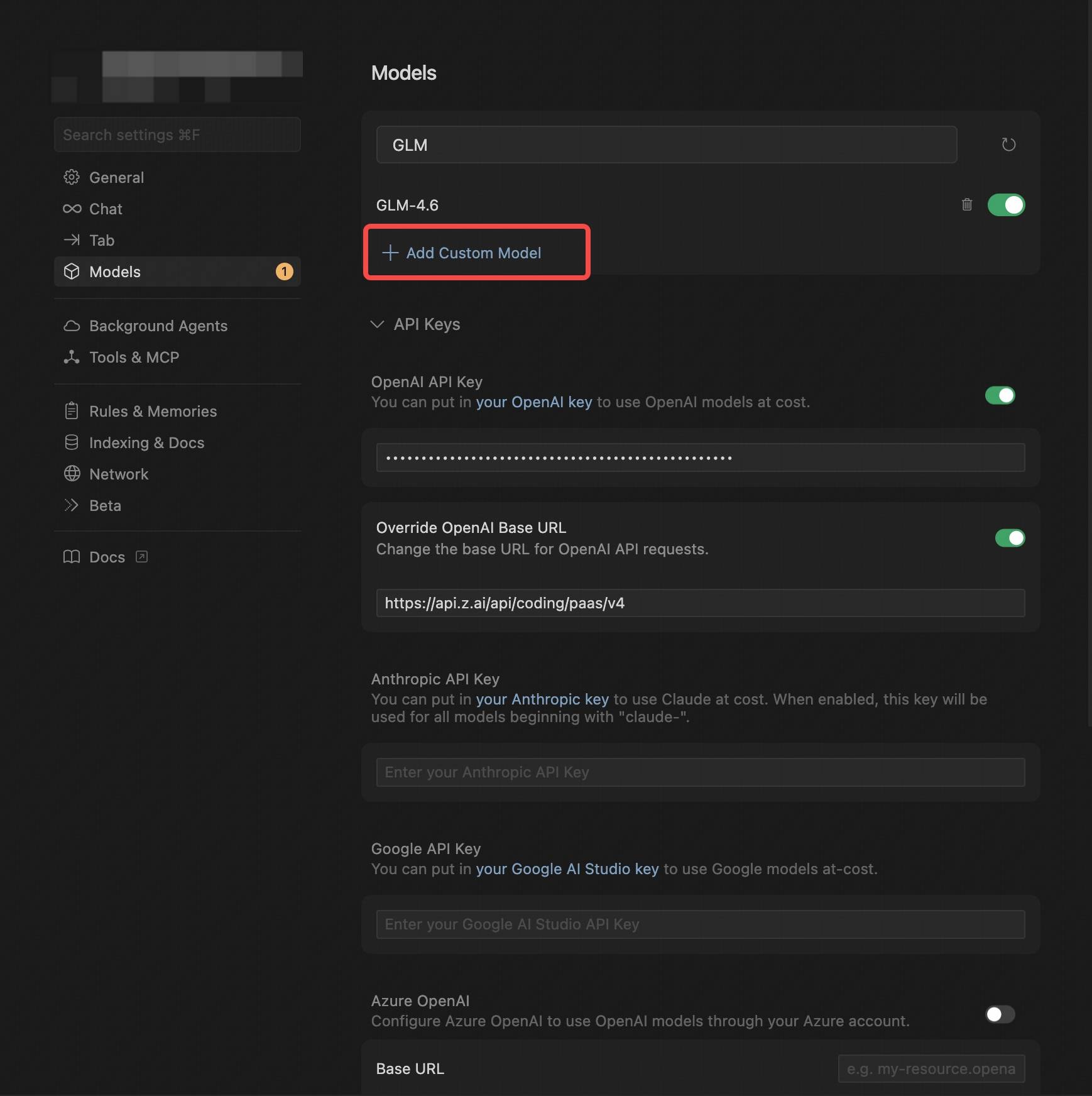
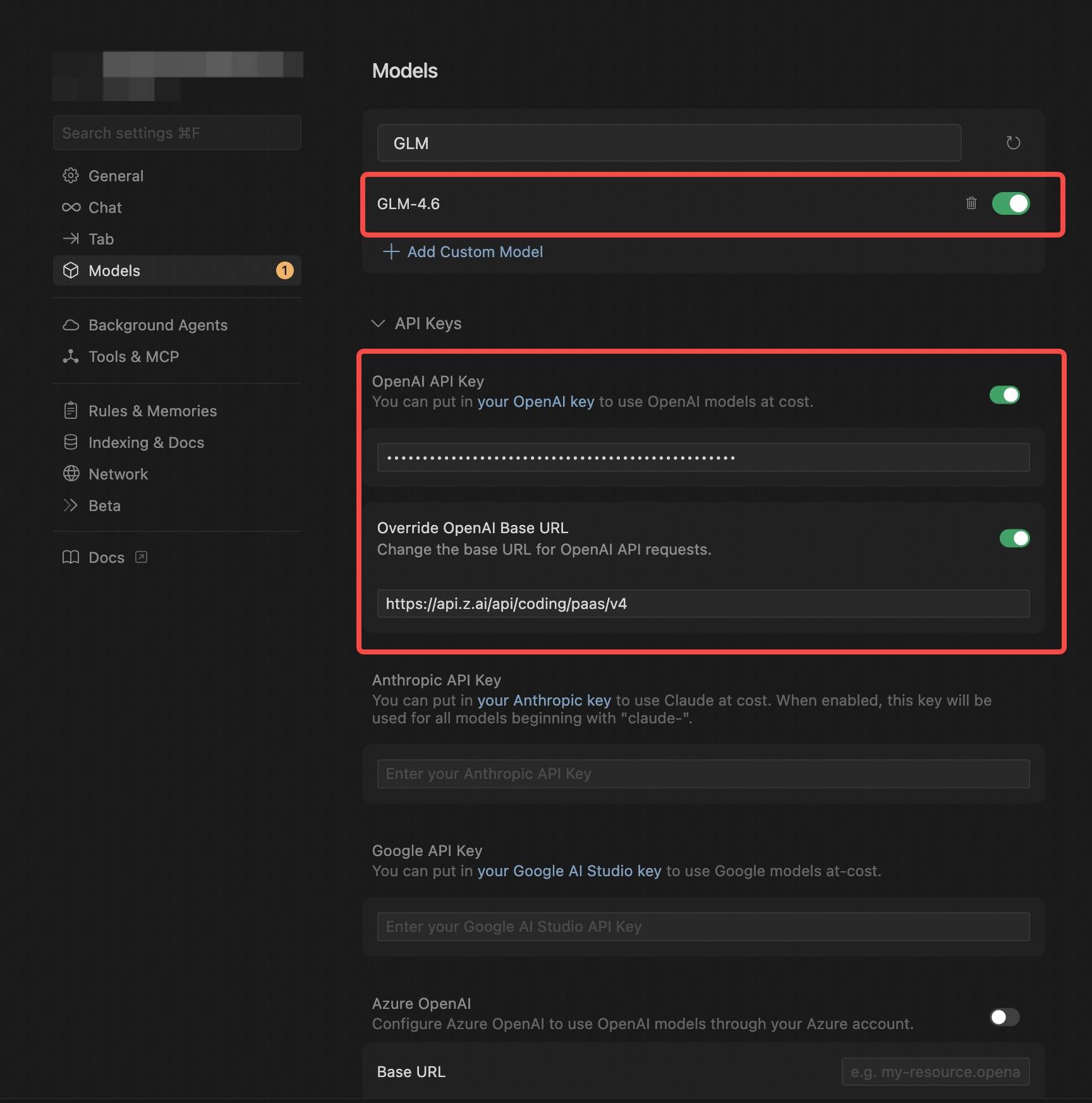
* Select the **OpenAI Protocol**.
* Configure the **OpenAI API Key** (obtained from the Z.AI).
* In **Override OpenAI Base URL**, replace the default URL with `https://api.z.ai/api/coding/paas/v4`.
* Enter the model you wish to use, such as `GLM-5.1`, `GLM-5` or `GLM-4.5-air`.
* Note: In Cursor, the model name must be entered in uppercase, such as `GLM-4.7`.
### 3. Save and Switch Models
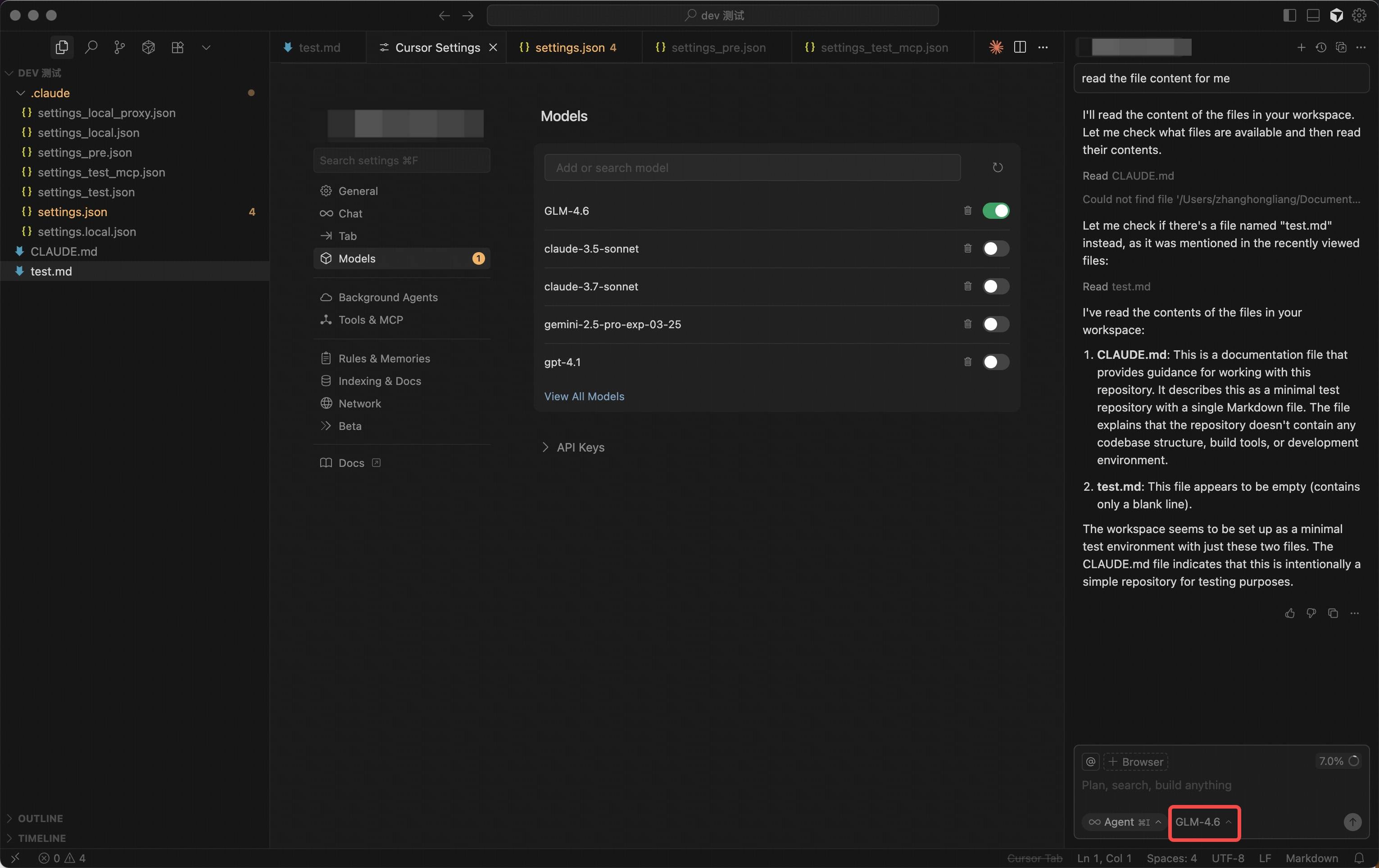
After configuration, save your settings and select the newly created **GLM-4.7 Provider** on the homepage.
### 4. Get Started
With this setup, you can begin using the GLM model for code generation, debugging, task analysis, and more.
## Step 3: Replacing the API URL
1. **Locate the API configuration section in your tool**:
For example, in **Goose**, this is typically where you set the API address in the configuration file; In **VS Code** plugins or **IntelliJ IDEA** plugins, configuration is usually done through the plugin's settings interface.
2. **Replace the OpenAI Base URL**:
Replace the default OpenAI API URL with `https://api.z.ai/api/coding/paas/v4`.
3. **Enter API Key and Select Model**:
* Enter your **Z.ai API Key**.
* Select `GLM-5.1`(standard, complex tasks) or `GLM-4.5-air`(lightweight, faster response) based on your requirements.