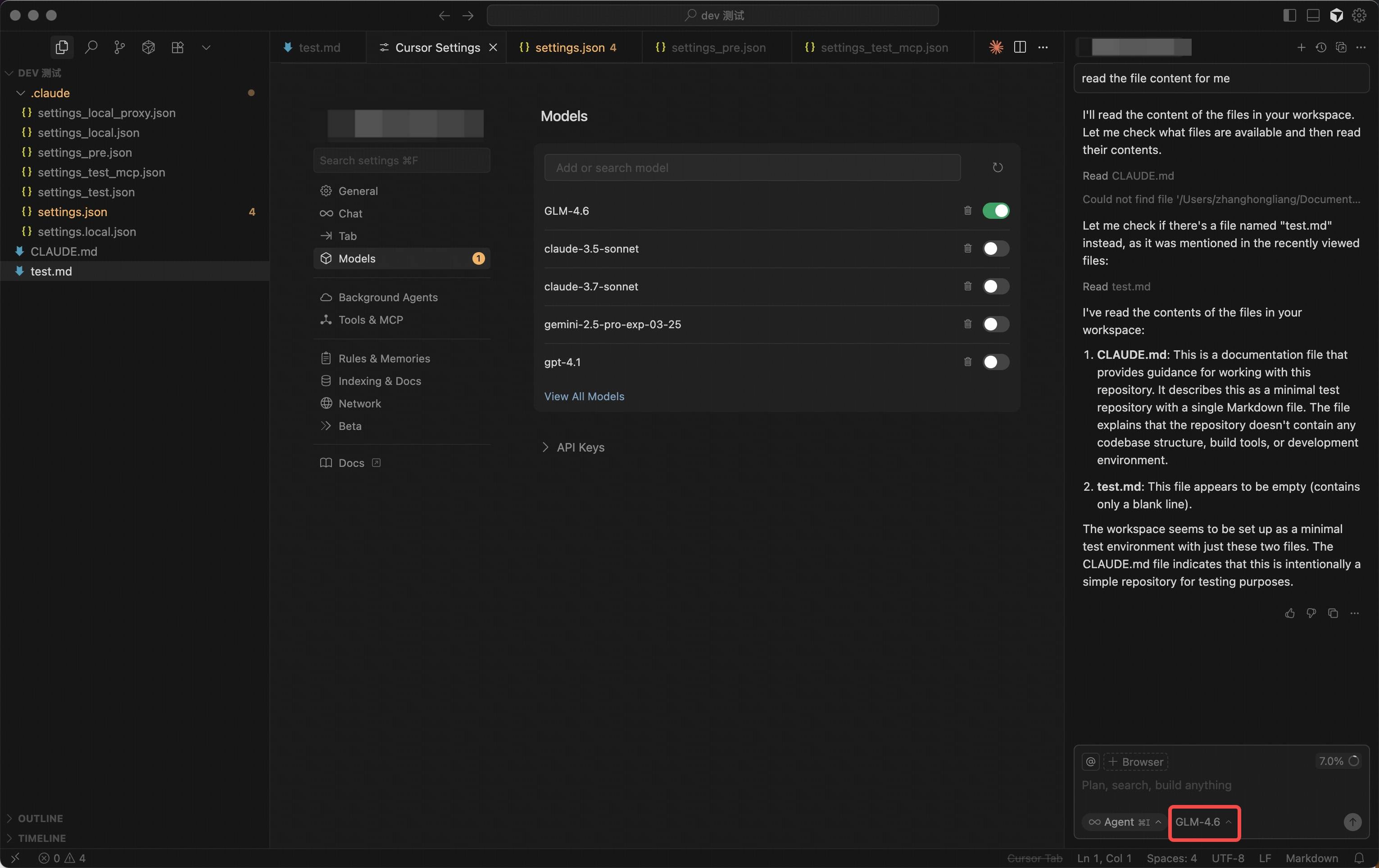
1. Install Cursor
Download and install Cursor from the official website.2. Create a New Provider/Model
In Cursor, navigate to the “Models” section and click the “Add Custom Model”.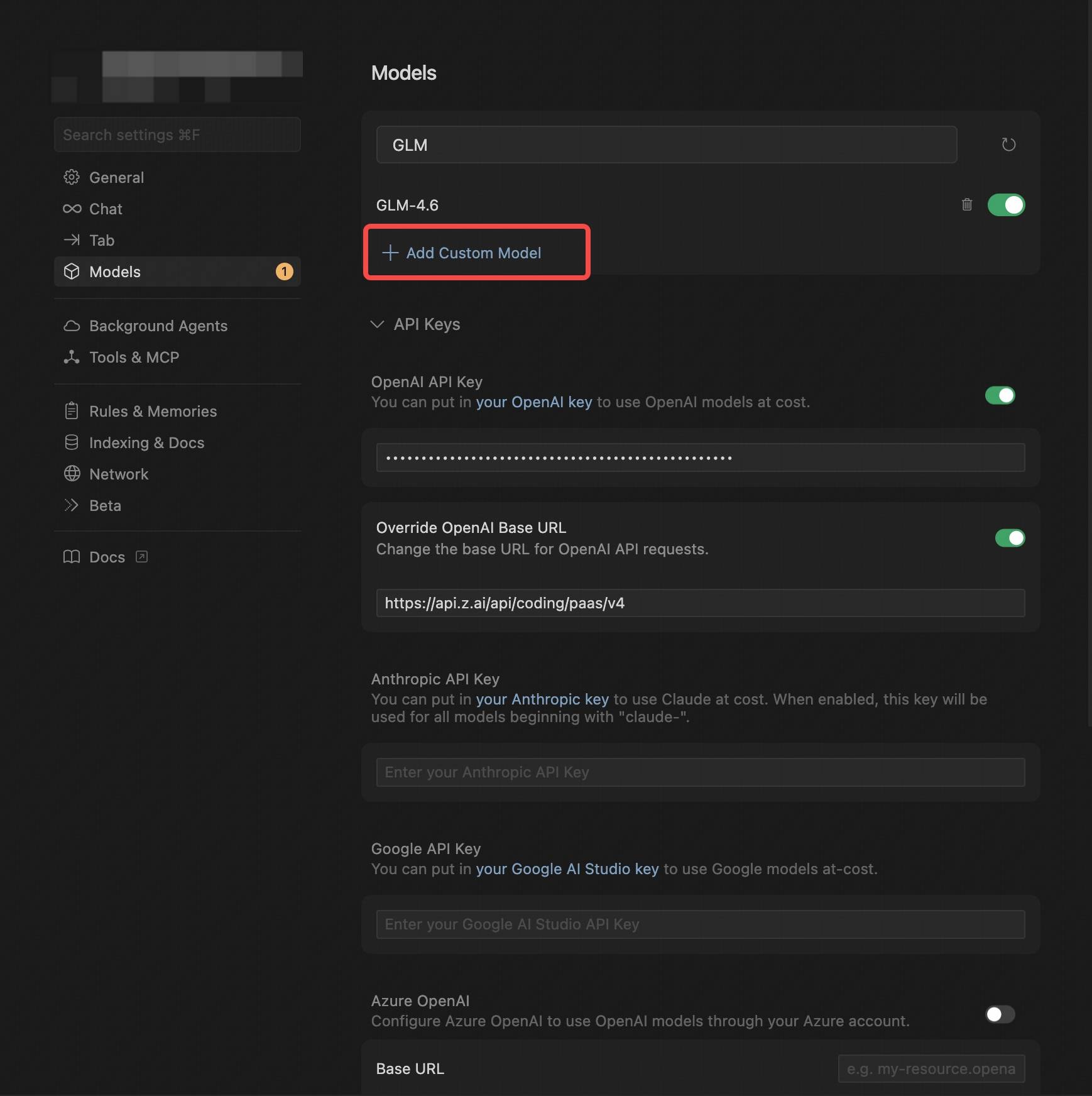
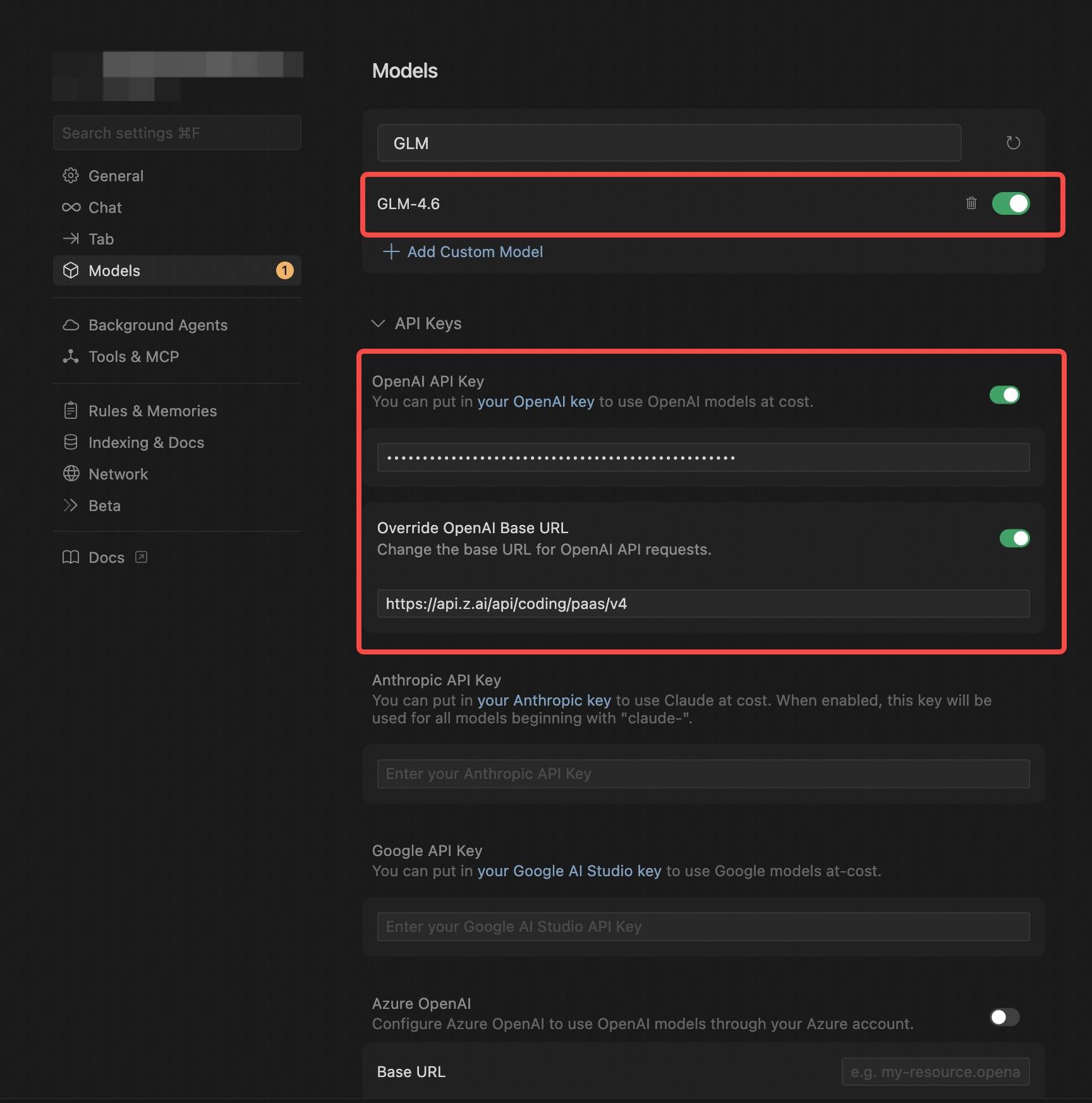
- Select the OpenAI Protocol.
- Configure the OpenAI API Key (obtained from the Z.AI).
- In Override OpenAI Base URL, replace the default URL with
https://api.z.ai/api/coding/paas/v4. - Enter the GLM model code you wish to use.
- Note: In Cursor, the model name must be entered in uppercase, such as
GLM-4.7.
3. Save and Switch Models
After configuration, save your settings and select the newly created GLM Provider on the homepage.4. Get Started
With this setup, you can begin using the GLM model for code generation, debugging, task analysis, and more.