

Claude Code is an agentic coding tool that lives in your terminal, understands your codebase, and helps you code faster by executing routine tasks, explaining complex code, and handling git workflows — all through natural language commands.Documentation Index
Fetch the complete documentation index at: https://docs.z.ai/llms.txt
Use this file to discover all available pages before exploring further.
Step 1: Installing the Claude Code
- Recommended Installation Method
- Cursor Guided Installation Method
Prerequisites:
- Node.js 18 or newer
- For MacOS, please use nvm to install Nodejs, if you directly install the package, maybe encounter permission issues
- For Windows, please additionally install Git for Windows
Note: If MacOS users encounter permission issues during installation, please use nvm to install Nodejs.
Step 2: Config GLM Coding Plan
Get API Key
- Access Z.AI Open Platform, Register or Login.
- Create an API Key in the API Keys management page.
- Copy your API Key for use.
Configure Environment Variables
Set up environment variables using one of the following methods in the macOS Linux or Windows:
- Automated Coding Tool Helper
- Automated Script
- Manual configuration
Coding Tool Helper is a coding-tool companion that quickly loads GLM Coding Plan into your favorite Coding Tools. Install and run it, then follow the on-screen guidance to automatically install tools, configure plan, and manage MCP servers.For more details, please refer to the Coding Tool Helper documentation.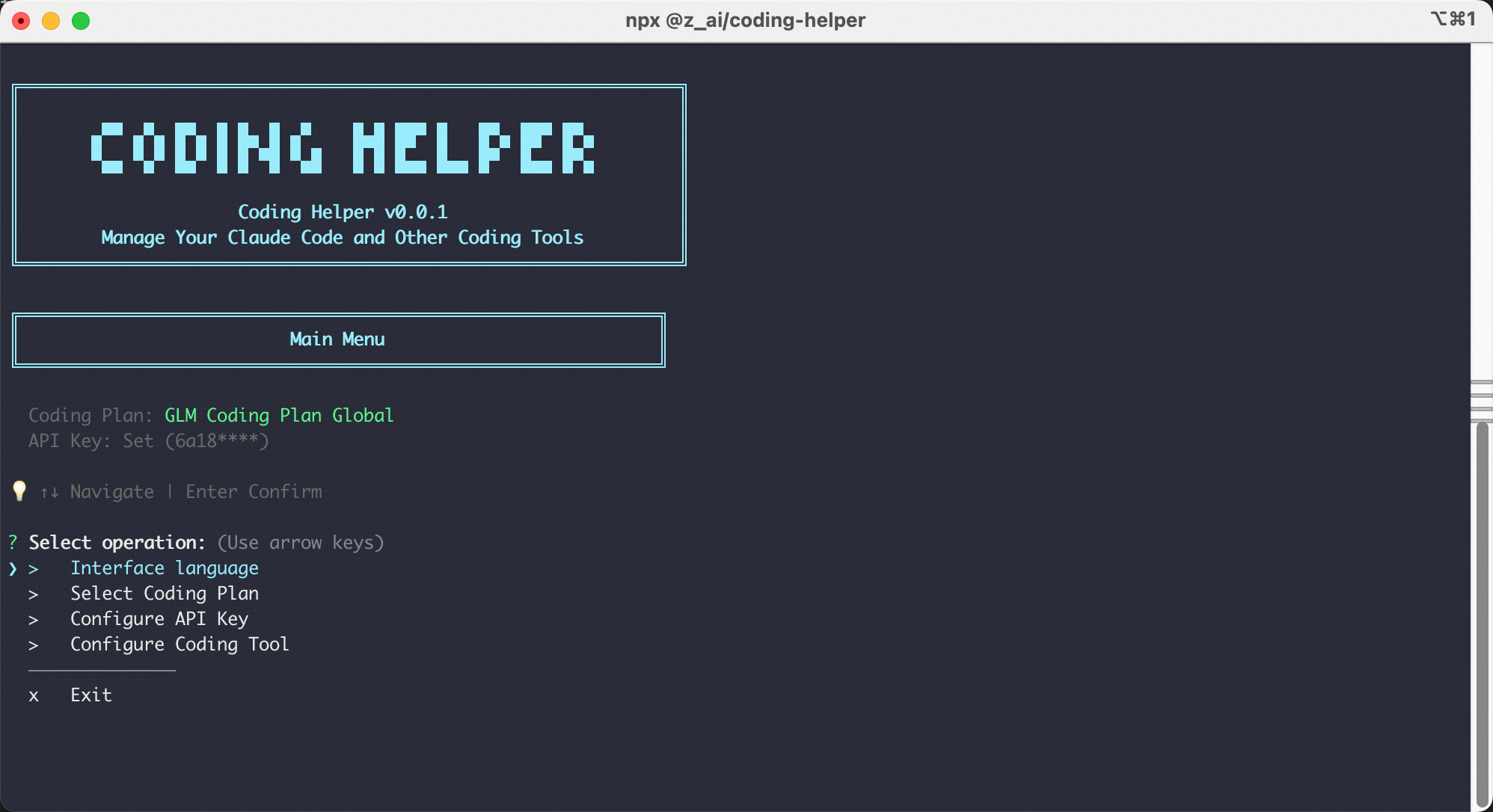
Step 3: Start with Claude Code
Once the configuration is complete, you can start using Claude Code in your terminal or cmd:If prompted with “Do you want to use this API key,” select “Yes.”After launching, grant Claude Code permission to access files in your folder as shown below:
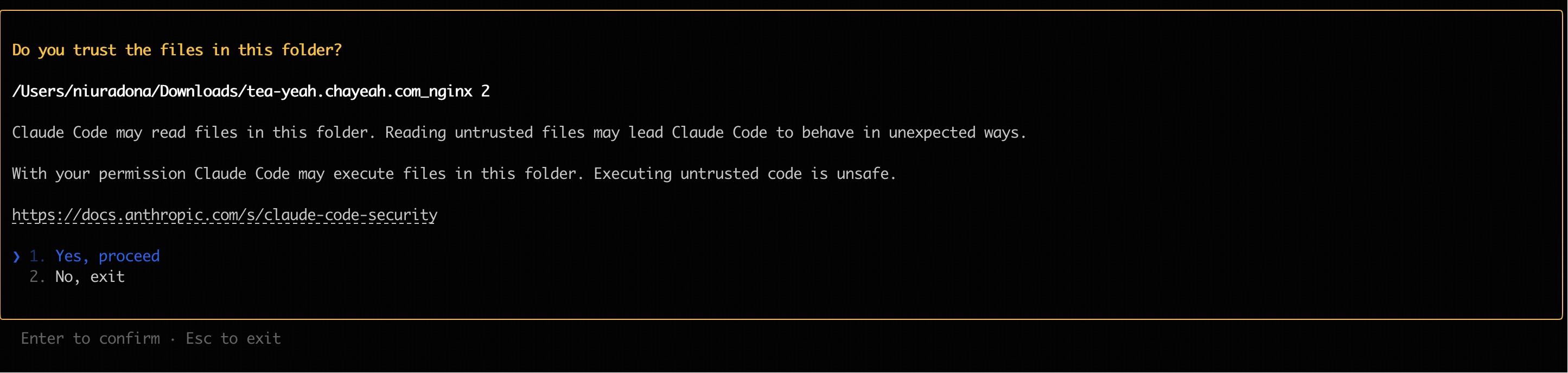 You can use Claude Code for development Now!
FAQ
How to check which model is currently in use
Open a new terminal window and runclaude to start Claude Code, enter /status to check the current model status.
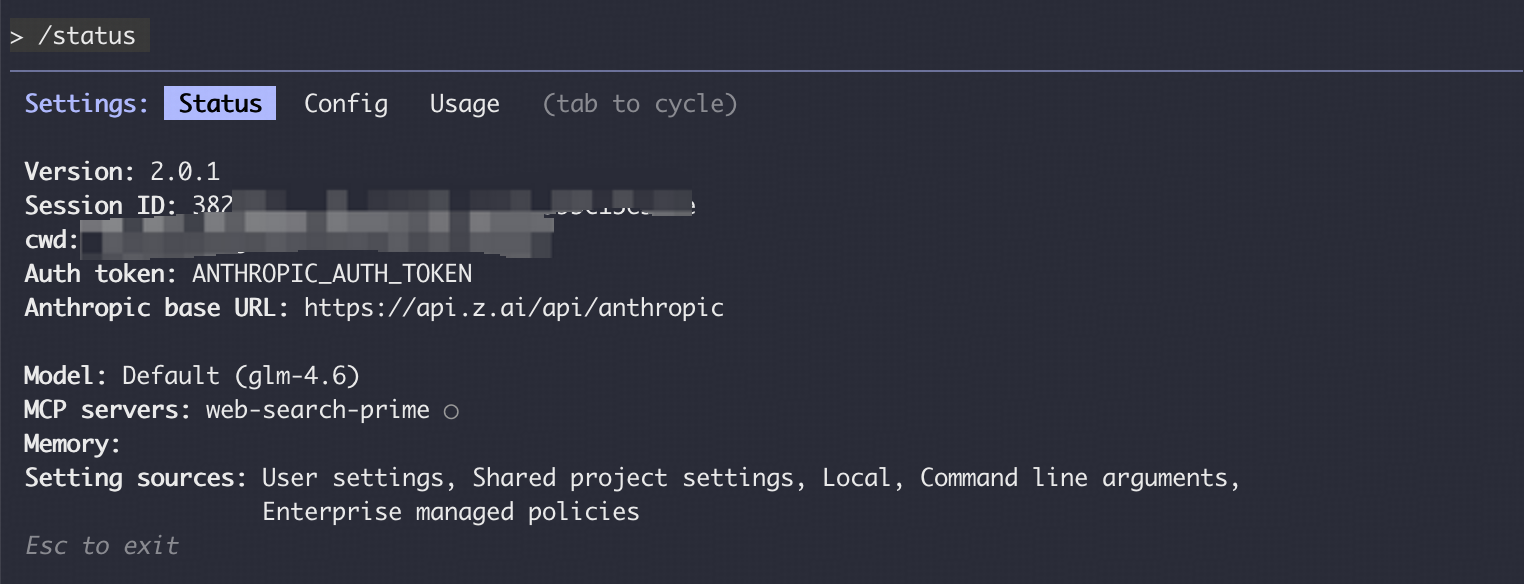
Vision Search Reader MCP
Refer to the Vision MCP Server , Search MCP Server and Web Reader MCP Server documentation; once configured, you can use them in Claude Code.Manual Configuration Not Work
If you manually modified the~/.claude/settings.json configuration file but found the changes did not take effect, refer to the following troubleshooting steps.
- Close all Claude Code windows, open a new command-line window, and run
claudeagain to start. - If the issue persists, try deleting the
~/.claude/settings.jsonfile and then reconfigure the environment variables; Claude Code will automatically generate a new configuration file. - Confirm that the JSON format of the configuration file is correct, check the variable names, and ensure there are no missing or extra commas; you can use an online JSON validator tool to check.
Recommended Claude Code Version
We recommend using the latest version of Claude Code. You can check the current version and upgrade with the following commands:We have verified compatibility with Claude Code 2.0.14 and other versions.