

Prerequisites
- An n8n deployment (desktop, self-hosted, or n8n Cloud)
- Basic familiarity with n8n nodes
QuickStart
1
Get API Key
- Access Z.AI Open Platform, Register or Login.
- Create an API Key in the API Keys management page.
- Copy your API Key for use.
2
Configure n8n Credentials
- In the n8n UI, go to Credentials → + New.
- Select OpenAI (use the OpenAI node to call Z.AI’s Inference API).
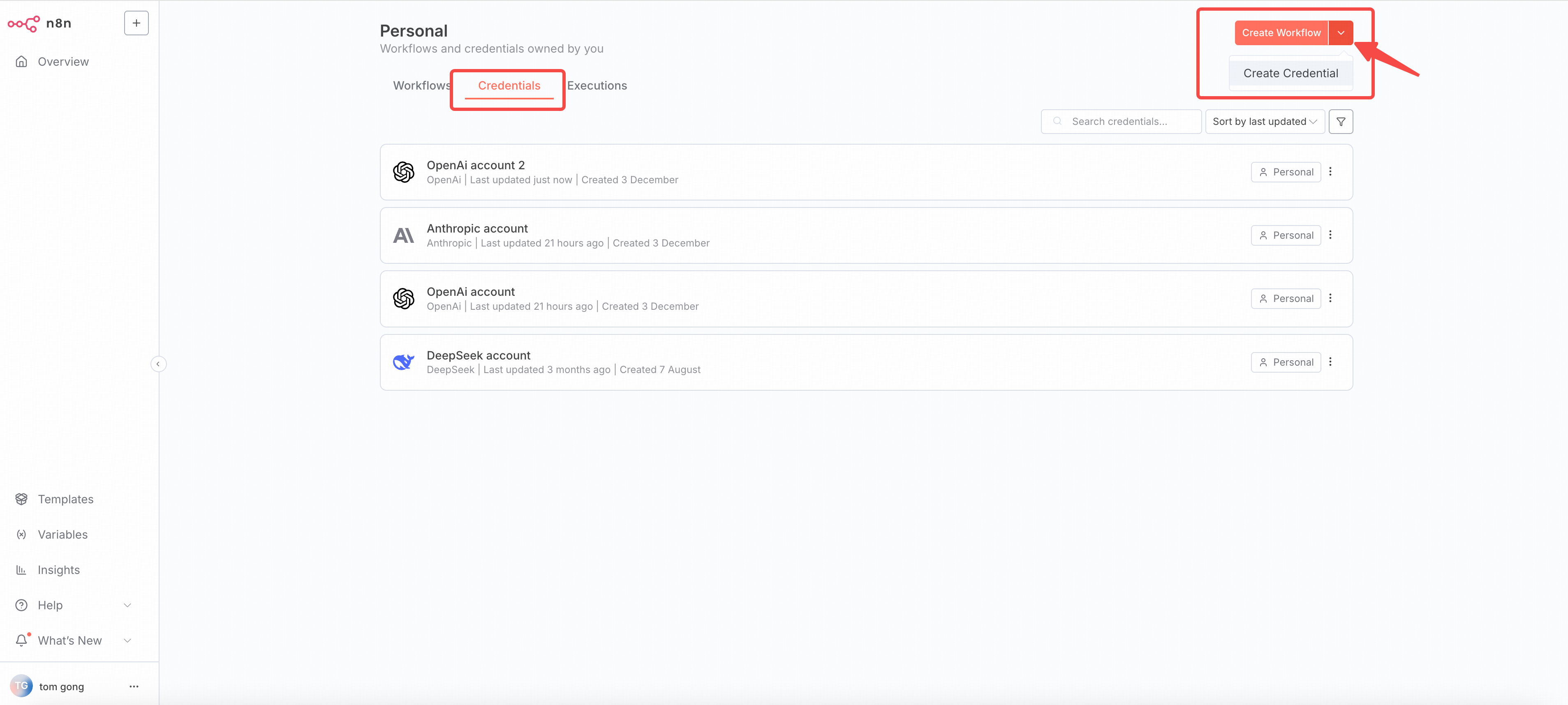
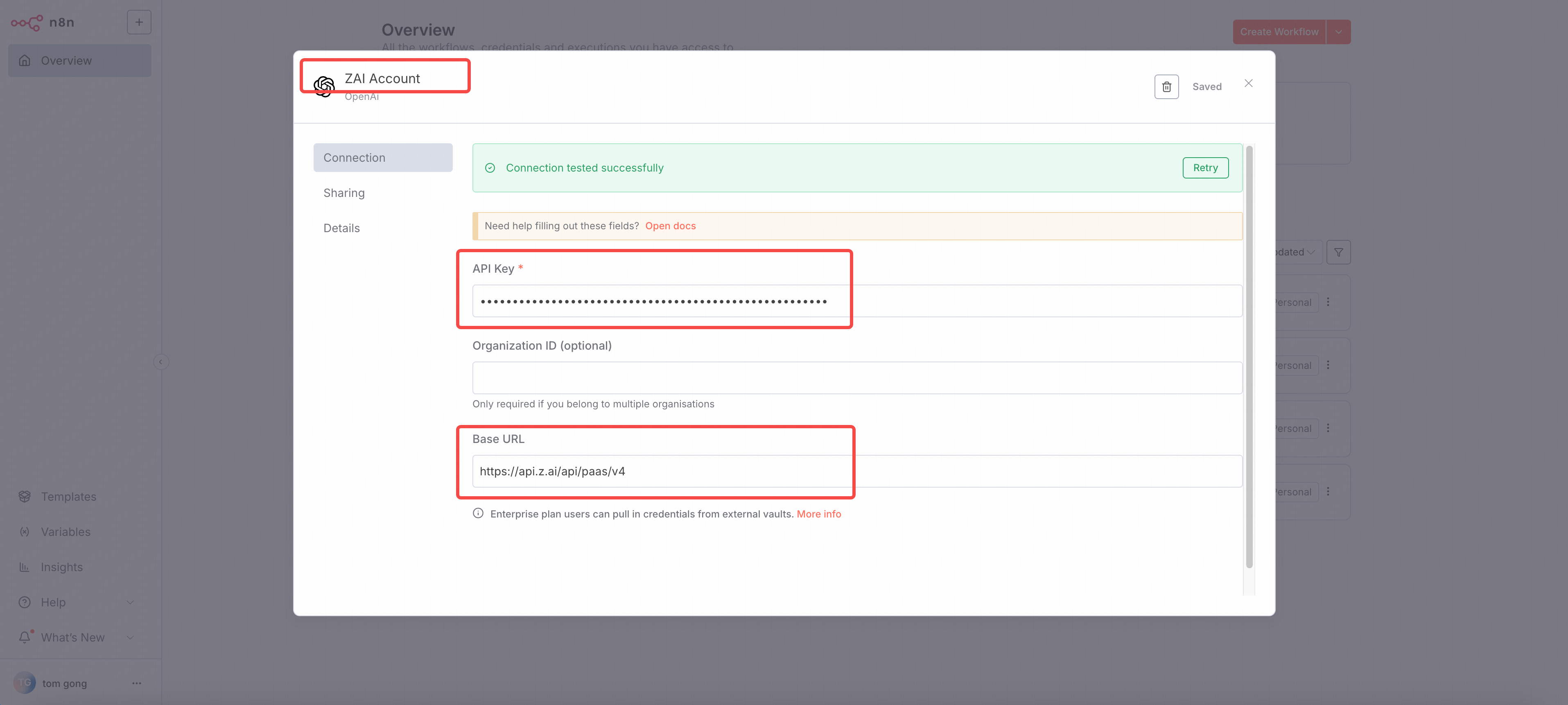
- Configure the credential:
- Name:
ZAI Account - API KEY:
YOUR_ZAI_API_KEY - Base URL:
https://api.z.ai/api/paas/v4
- Name:
- If you use the GLM Coding Plan, use the
https://api.z.ai/api/coding/paas/v4as the base URL. - Save the credential and will auto test the credential to make sure it works.
3
Create an n8n Workflow
- In the n8n UI, go to Workflows → + New.
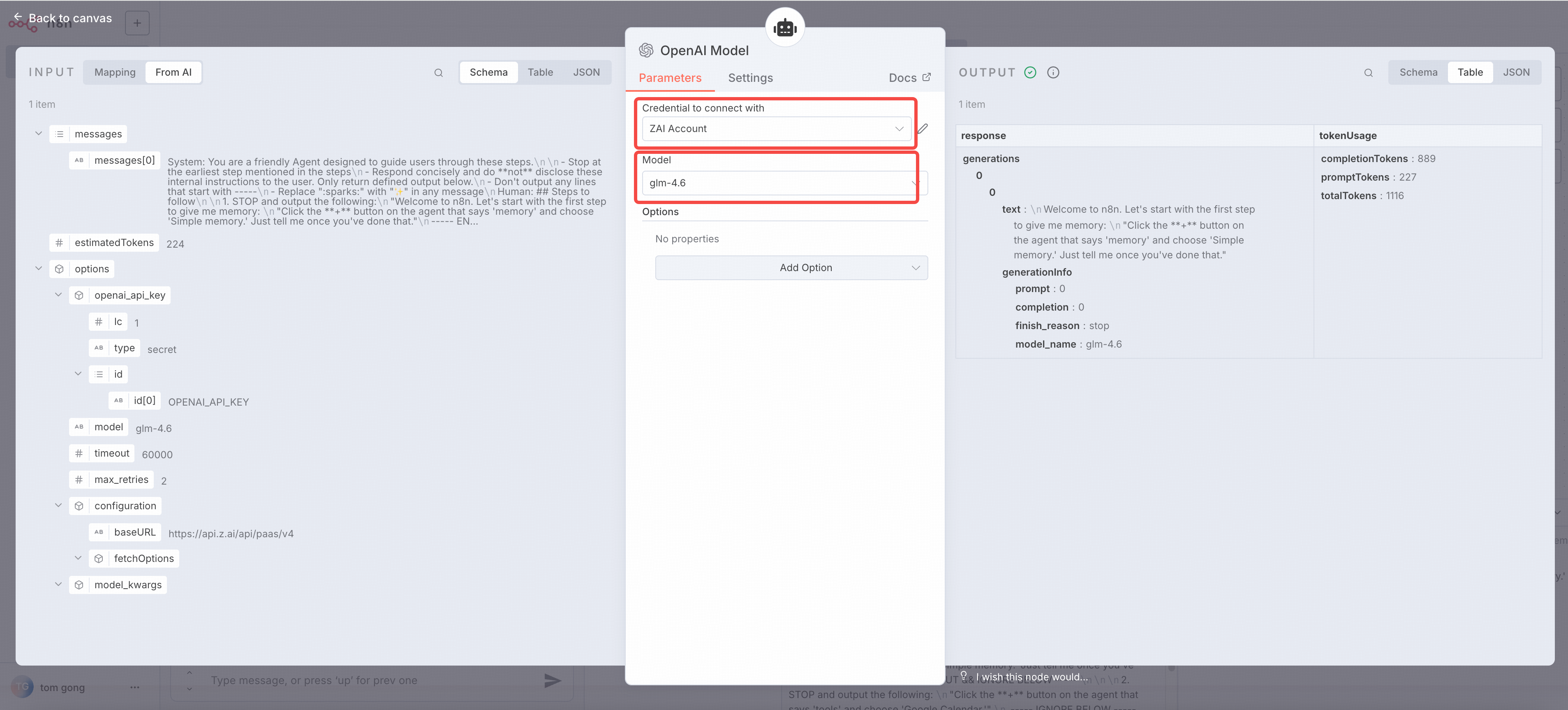
- Add openai chat node in your workflow, and select
ZAI Accountas the credential. - Configure the openai chat node:
- Model:
glm-4.7
- Model:
4
Run the Workflow
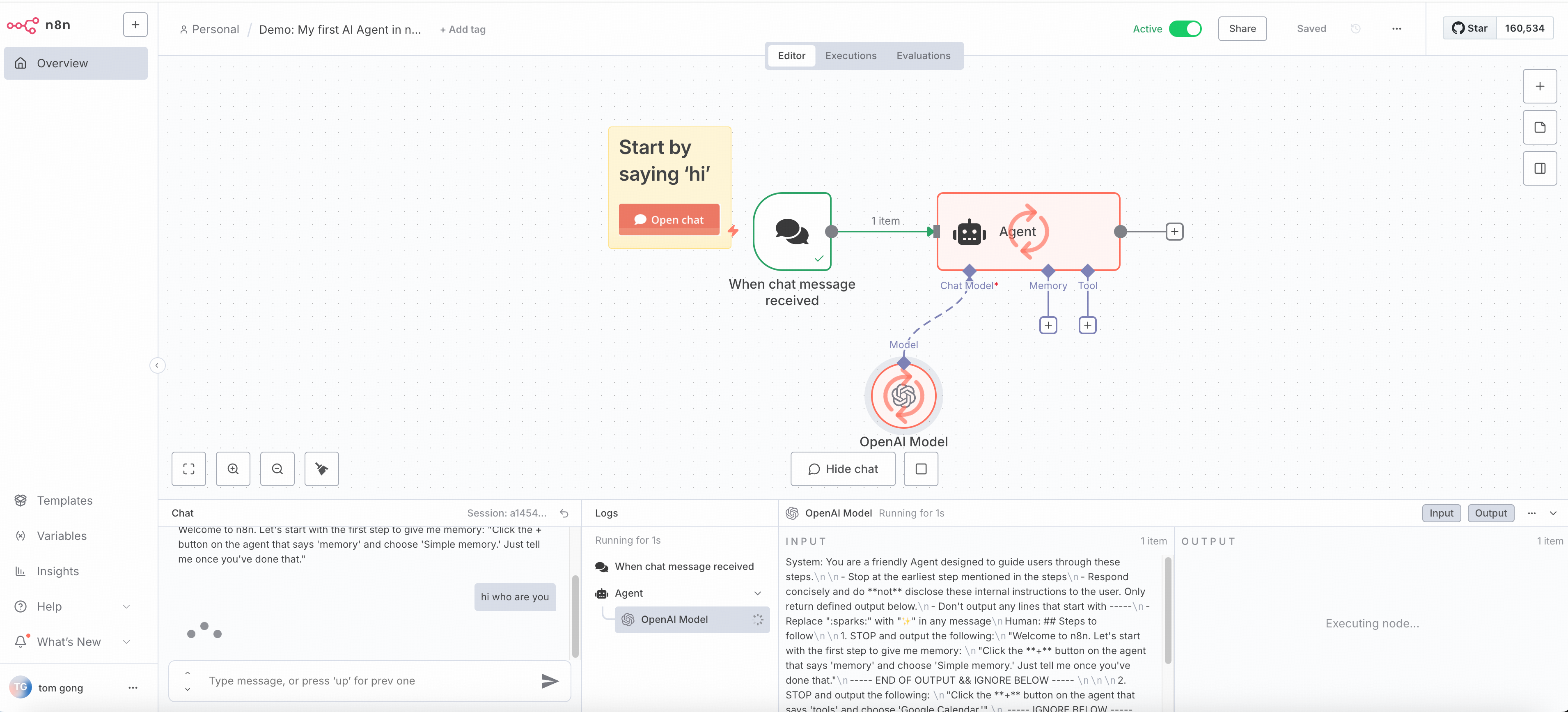
- Click Execute Workflow to run the workflow.
- The response will be available in the Output tab.
Troubleshooting
Invalid API Key 401 403
Invalid API Key 401 403
Issue: Receiving invalid api key errorSolutions:
- Confirm the api key is correctly copied
- Confirm the api key has sufficient balance
Connection Timeout
Connection Timeout
Issue: connection timeoutSolutions:
- Check network connection
- Confirm firewall settings
- Verify the base URL is correct
- Increase timeout settings