

Step 1: Supported Tools
Click on the tool documentation below that you wish to use, and follow the corresponding integration guide to set it up.Claude for IDE
The Claude Code IDE plugin supports VSCode and JetBrains.
Cursor
An AI-first code editor that supports custom model configurations.
Cline
An AI programming extension for VS Code that supports code generation and file operations.
TRAE
An AI editor capable of independently completing various development tasks.
Droid
Enterprise-grade AI coding agent that runs in the terminal to handle end-to-end workflows.
Kilo Code
A powerful VS Code extension for code generation and project management.
Roo Code
A smart VS Code extension for code writing and refactoring.
Crush
A terminal-based AI programming tool that supports both CLI and TUI interfaces.
Goose
AI Agent tool, supporting local execution and automated engineering tasks.
Eigent
A desktop AI agent built on a multi-agent architecture, capable of automating browser, terminal, and MCP-powered workflows.
Step 2: Install and Config
Core Steps:Using Cursor as an example (Note: Custom configuration is only supported in Cursor Pro and higher versions), the following steps demonstrate how to integrate the
- Select an OpenAI-compatible provider.
Add/Replace the OpenAI Base URL with https://api.z.ai/api/coding/paas/v4.Enter your Z.AI API Key and select GLM-5.3 or GLM-5.3-Flash.
GLM-4.7 model via the OpenAI protocol. Similarly, other tools supporting the OpenAI protocol can adopt the same configuration approach.
1. Install Cursor
Download and install Cursor from the official website.2. Create a New Provider/Model
In Cursor, navigate to the “Models” section and click the “Add Custom Model”.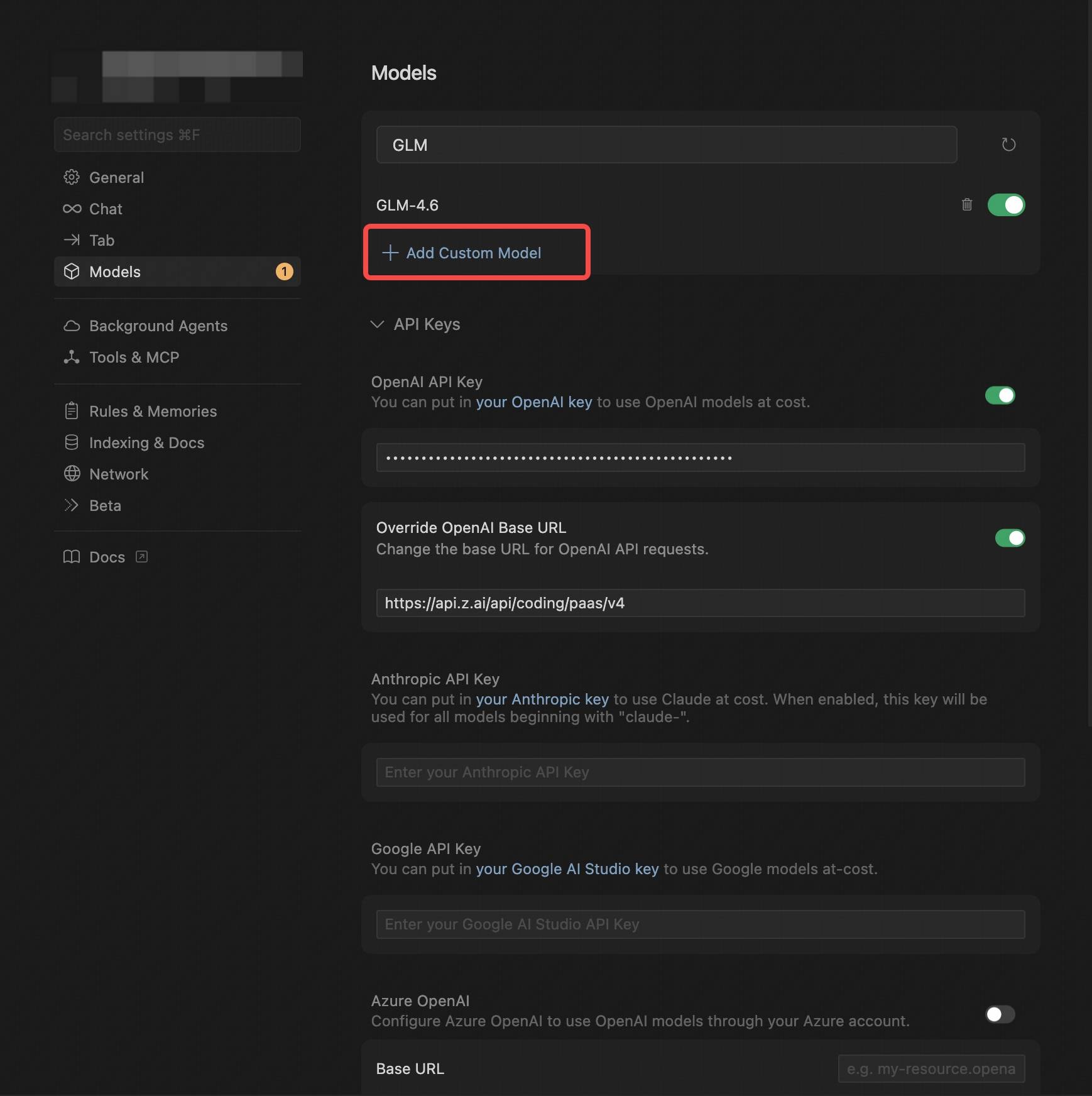
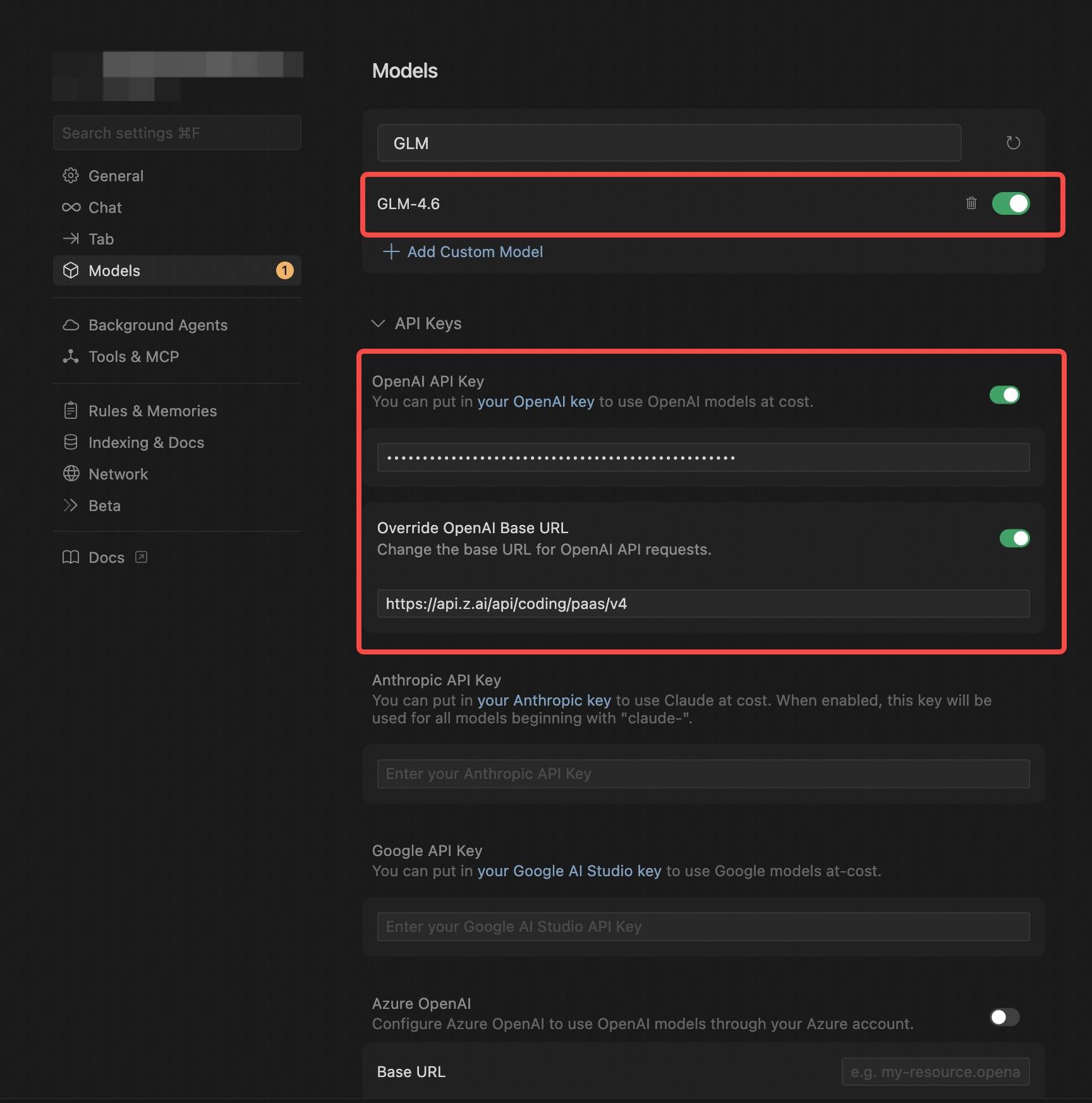
- Select the OpenAI Protocol.
- Configure the OpenAI API Key (obtained from the Z.AI).
- In Override OpenAI Base URL, replace the default URL with
https://api.z.ai/api/coding/paas/v4. - Enter the model you wish to use, such as
GLM-5.1,GLM-5orGLM-4.5-air. - Note: In Cursor, the model name must be entered in uppercase, such as
GLM-4.7.
3. Save and Switch Models
After configuration, save your settings and select the newly created GLM-4.7 Provider on the homepage.4. Get Started
With this setup, you can begin using the GLM model for code generation, debugging, task analysis, and more.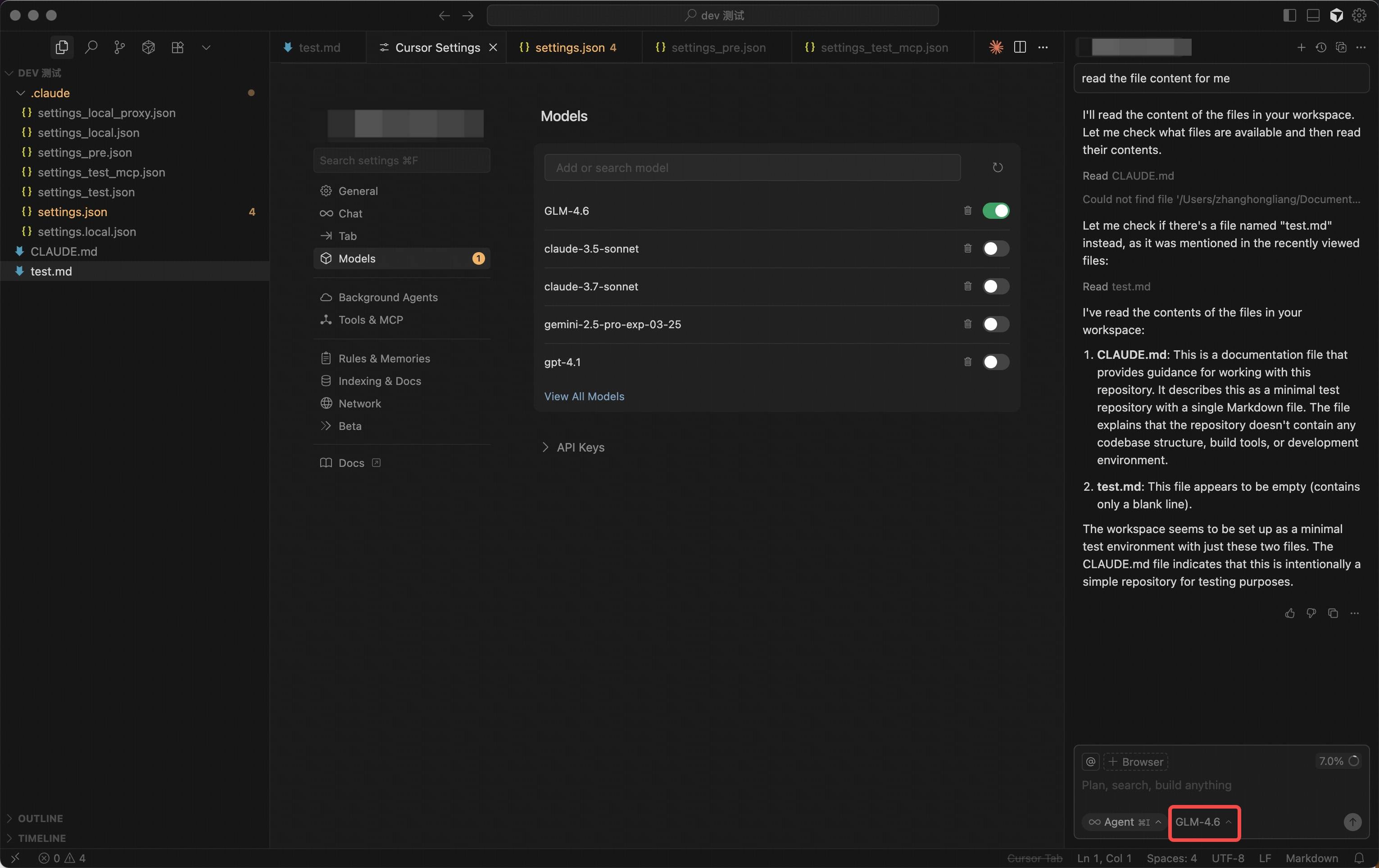
Step 3: Replacing the API URL
- Locate the API configuration section in your tool:
- Replace the OpenAI Base URL:
https://api.z.ai/api/coding/paas/v4.
- Enter API Key and Select Model:
- Enter your Z.ai API Key.
- Select
GLM-5.1(standard, complex tasks) orGLM-4.5-air(lightweight, faster response) based on your requirements.